
Setting Up Your GitHub and IDE
- 1d Set up and edit a GitHub repository using github.dev (CLO 3)
Getting Started with github.dev
Getting Started with Your Course Repository
In this course, you will be working with a GitHub repository ("repo") that contains everything you need for both your practice exercises and your course project. GitHub is a free online platform that lets you store and share code, and github.dev is a browser-based editor where you can make changes without installing anything on your computer. Follow the steps below to create your own copy of the course repository and get set up.
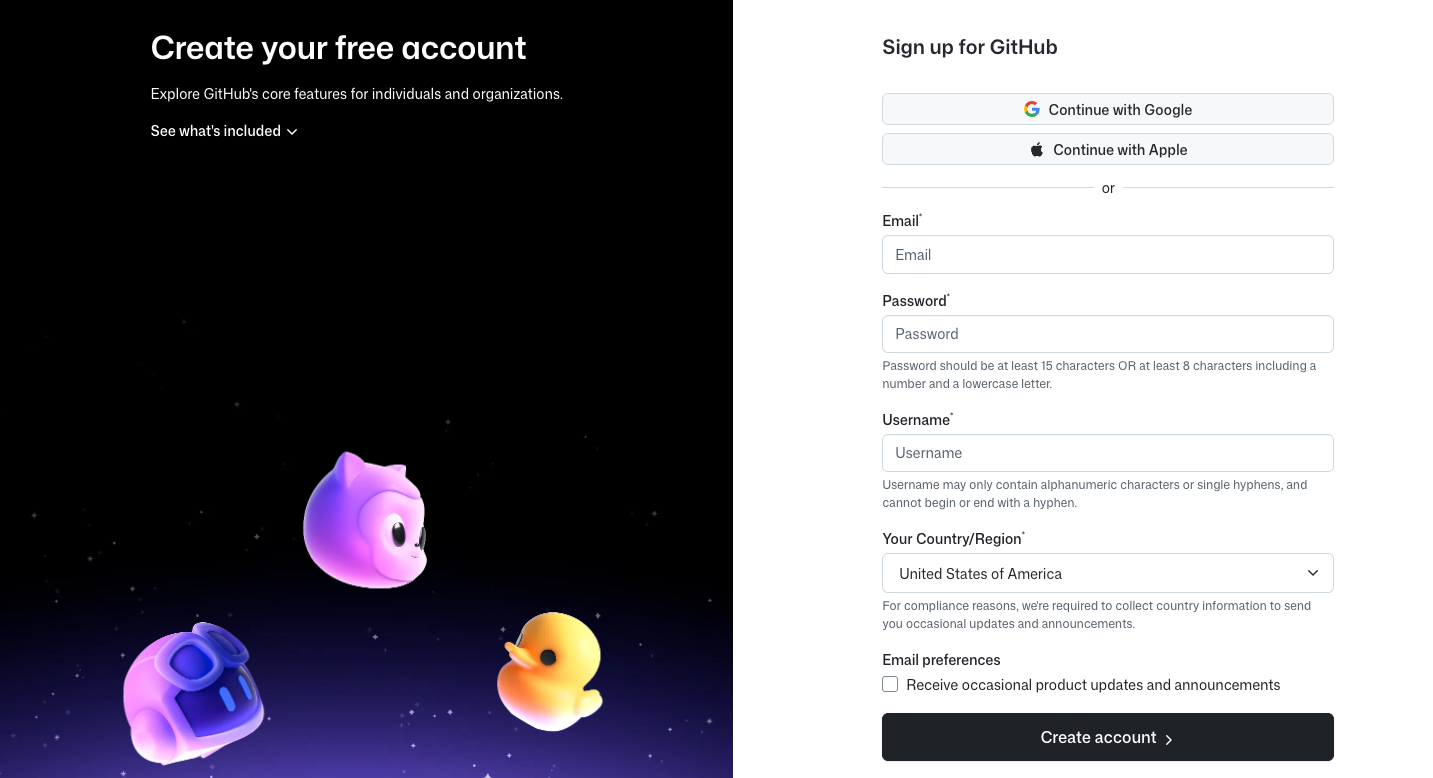
Step 1: Create a GitHub account
- Go to https://github.com/
- Click "Sign up"
- Create your account, or click on "Continue with Google"
- Follow the prompts to create a free account
Step 2: Copy the Template Repository
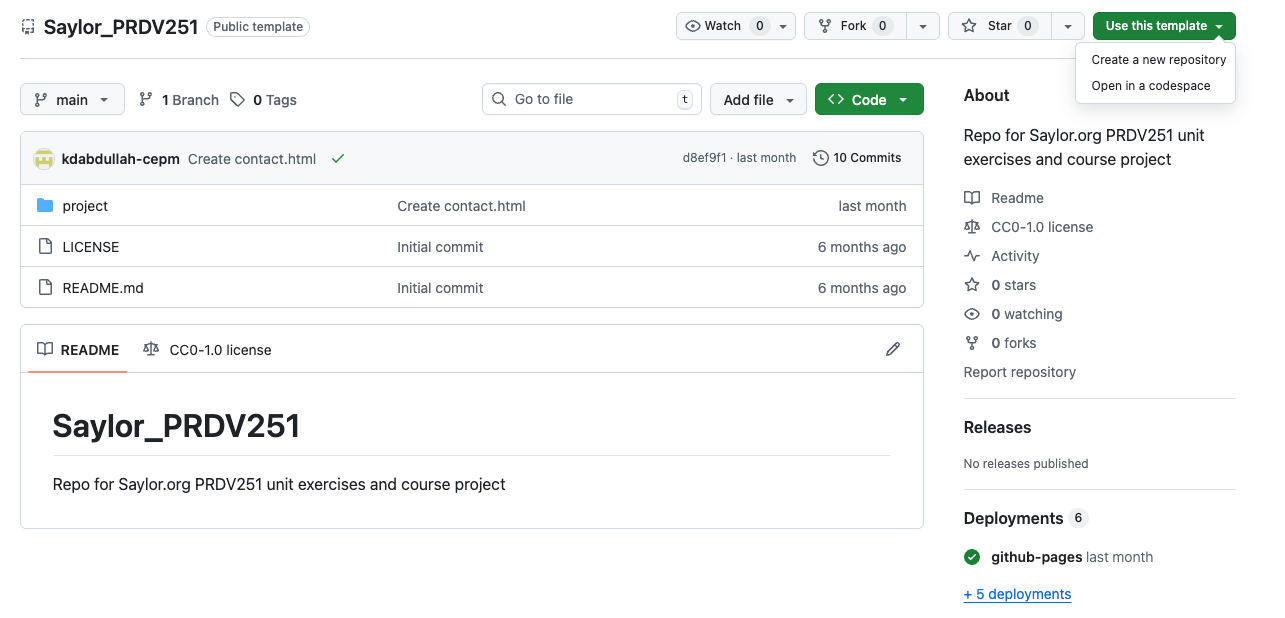
- Opening the Template: While signed into GitHubg, navigate to the PRDV251 Course Template Repository.
- Initializing the Copy: Click the green Use this template button near the top right of the file list, then select Create a new repository.Note: If you don't see this button, ensure you are logged into your GitHub account.
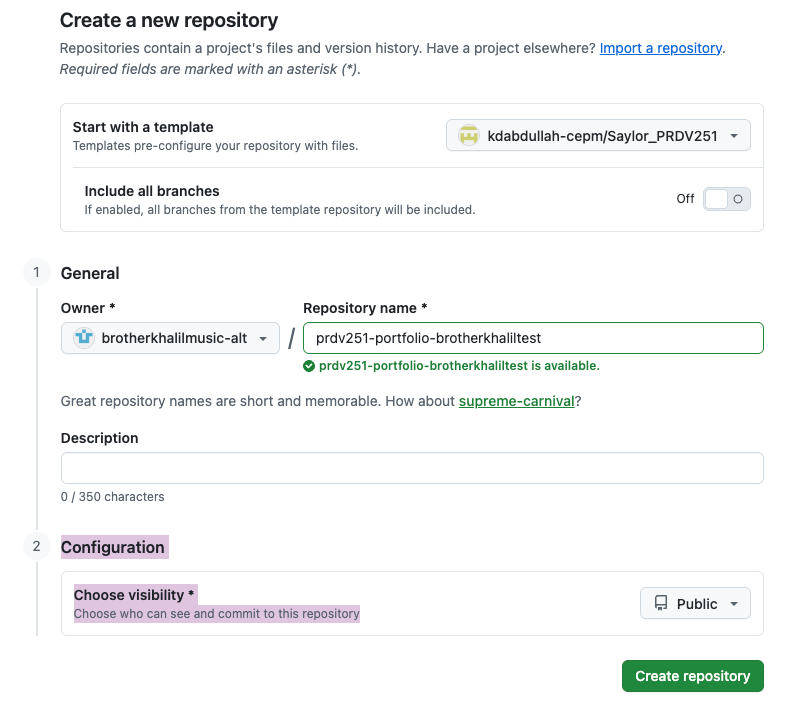
- Name Your Project: In the Repository name field, enter a unique name. We recommend:
prdv251-portfolio-yourname. - Set Visibility: Ensure the Public radio button is selected.
- Why? Your repository must be public so that you can use GitHub Pages to host and view your live website later in the course.
- Finalize: Leave the "Include all branches" box unchecked (unless specifically instructed otherwise) and click the Create repository button.
Success! GitHub will now generate your new repository. After a few seconds, you will be redirected to your own personal version of the course files.
Step 3: Open your Repository in github.dev
- Go to your new repository page on GitHub.
- Press the
.(period) key on your keyboard. - This opens your repo in github.dev, a web-based version of Visual Studio Code (VS Code).
- On the left sidebar (Explorer), you will see one main folder:
- project/ - your personal portfolio project (this is what will be published online)
Step 4: Preview the Folder Structure
Inside the project/ folder you'll see:
index.html- the homepage of your portfolioabout.html- an about-me pagecontact.html- your contact page (to be built over time)project/- a folder for project subpagesassets/css/style.css- the main stylesheet for your siteassets/img/- a place to store images. Note - you will see .keep and test_image.jpg. They are test files that Github uses. No need to do anything with these files. They're tiny. Just leave them.
You will work mainly inside the project/ folder when building your project.
Step 5: Publish your Portfolio with GitHub Pages
- Back on your repository page in GitHub, click the Settings tab.
- Scroll down to Pages in the left sidebar.
- Under Source, select:
- Branch:
main - Folder:
/(root) - Click Save.
- After a minute, GitHub will give you a public URL where your portfolio is live.
- Example:
https://username.github.io/repo-name/ - Copy the URL and add "project" to the end
- Example:
https://username.github.io/repo-name/project
You should now be able to see your webpage! From now on, any changes you make in the project/ folder and commit to GitHub will automatically update your live site.
Source: Khalil Abdullah and Saylor University
 This work is licensed under a Creative Commons Attribution 4.0 License.