
Create Your First HTML Page
- 1c Implement basic HTML elements and commands to see how they function (CLO 4)
- 1d Set up and edit a GitHub repository using github.dev (CLO 3)
Creating Your First Webpage With HTML
Now that you understand what HTML is and what it does, let's build your first working web page! In the exercise in this section, you'll write a few lines of HTML in the MDN Playground, explore how each element works, and see your page render instantly in the preview pane. The MDN Playground is an online code editor for writing and testing HTML, CSS, and JavaScript directly in your browser. It provides a quick, live environment to experiment with web code and practice your HTML and CSS examples.
You don't need any special software for this part - just your browser.
Step 1: Set up your Workspace
- Go to MDN Playground.
- If needed, click New → HTML to open a blank document.
- You'll see two panels:
- The left panel (editor) is where you type your HTML.
- The right panel (preview) shows the result instantly.
Step 2: Build your First Page
Imagine that you do not know what a house is and the instructor is trying to describe it brick by brick, board by board, window by window. That's kind of what understanding your first HTML page would be like if we present it to you element by element, tag by tag. Instead, you will see an example of a simple HTML document in entirety. You will then learn what each element does and be able to have a frame of reference for it by seeing it "in action" in the template below. Lastly, you'll get a chance to add your own HTML, test it, and reflect on some initial lessons that are foundational to building good webpages.
Copy and paste this template into the HTML editor. If Playground doesn't automatically display the results on the righthand side, click "Run":
<!doctype html>
<html lang="en">
  <head>
    <meta charset="utf-8">
    <meta name="viewport"
content="width=device-width, initial-scale=1">
    <title>My First HTML Page</title>
  </head>
  <body>
    <h1>Hello, world!</h1>
    <p>This is my very first web page.</p>

    <h2>Instructions for life:</h2>
    <ul>
      <li>Eat</li>
      <li>Sleep</li>
      <li>Repeat</li>
    </ul>

    <p>My favorite HTML resource:
      <a href="https://developer.mozilla.org/en-US/docs/Web/HTML">MDN HTML</a>
    </p>
  </body>
</html>
You have now made your first webpage!
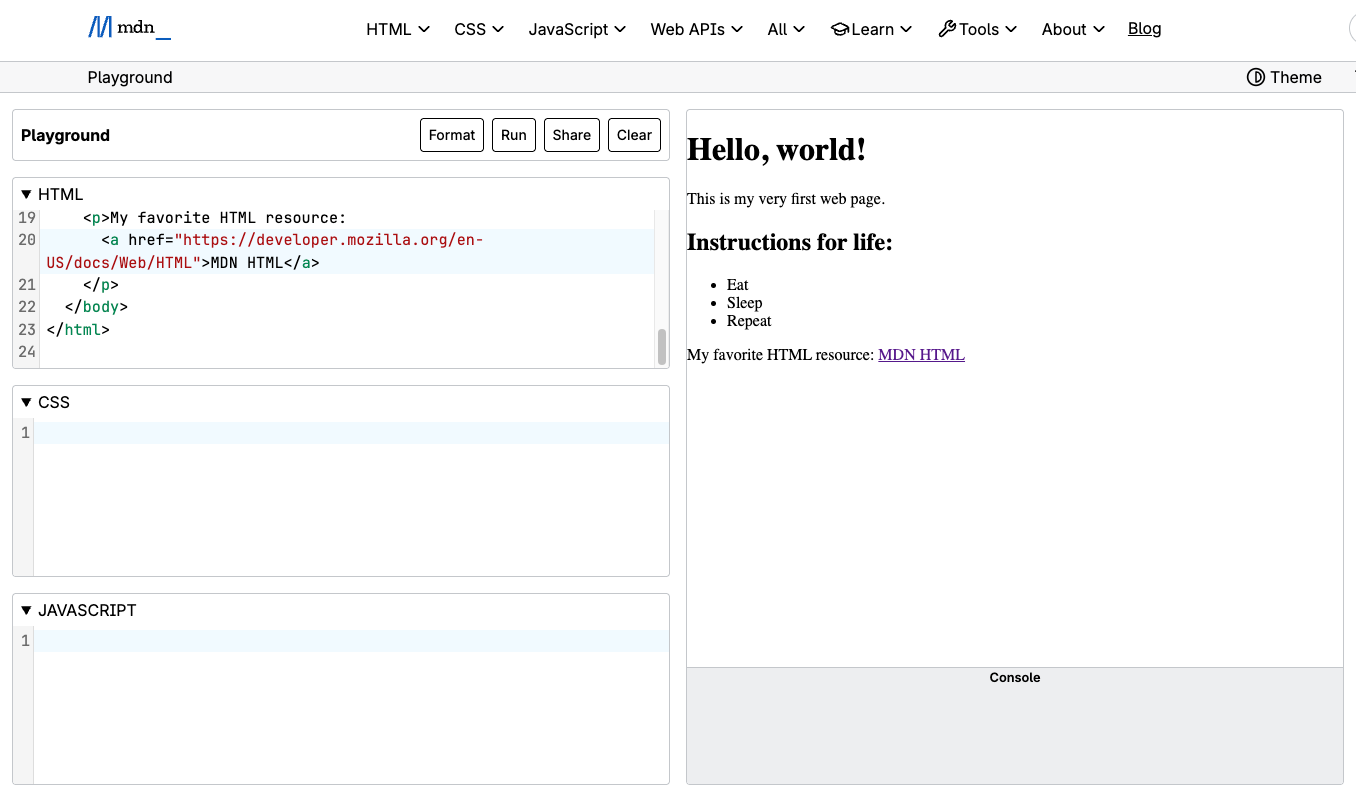
"Hello World" is a classic test that is used in every programming language, and you just made your first in HTML. So, now let's break down the components:
What's happening here
<!doctype html> → required; tells the browser you're using modern HTML5.
<html> → required; wraps everything on the page; lang="en" identifies the document's language. <head> → required; holds info about the page (title and metadata-information about the document itself, like description, character set, etc.).
<title> → required; appears in the browser tab and is shown when the page is bookmarked.
<body> → required; contains all visible content.
<h1> and <h2> → optional but standard for page headings and structure.
<p> → optional but standard for paragraphs of text.
<ul> + <li> → optional; create unordered (bulleted) lists.
<a href="..."> → optional; creates hyperlinks to other pages or resources.
Step 3 - Make it Yours
Now try editing your code directly in the MDN Playground:
- Change the main heading (
<h1>) to your own name. - Rewrite the paragraph with one sentence about you.
- Replace the list items with three quick facts about yourself.
- Change the link's text and destination (
href) to a site you like. Be sure to follow the same syntax by copying and pasting the entire URL of the site, for example "https://www.google.com/" - Press Run to preview your updates live.
Step 4 - Experiment with One New Element
Try adding one new tag below your list, such as:
<img src="https://upload.wikimedia.org/wikipedia/commons/6/6a/JavaScript-logo.png"
     alt="The JavaScript logo" width="120">
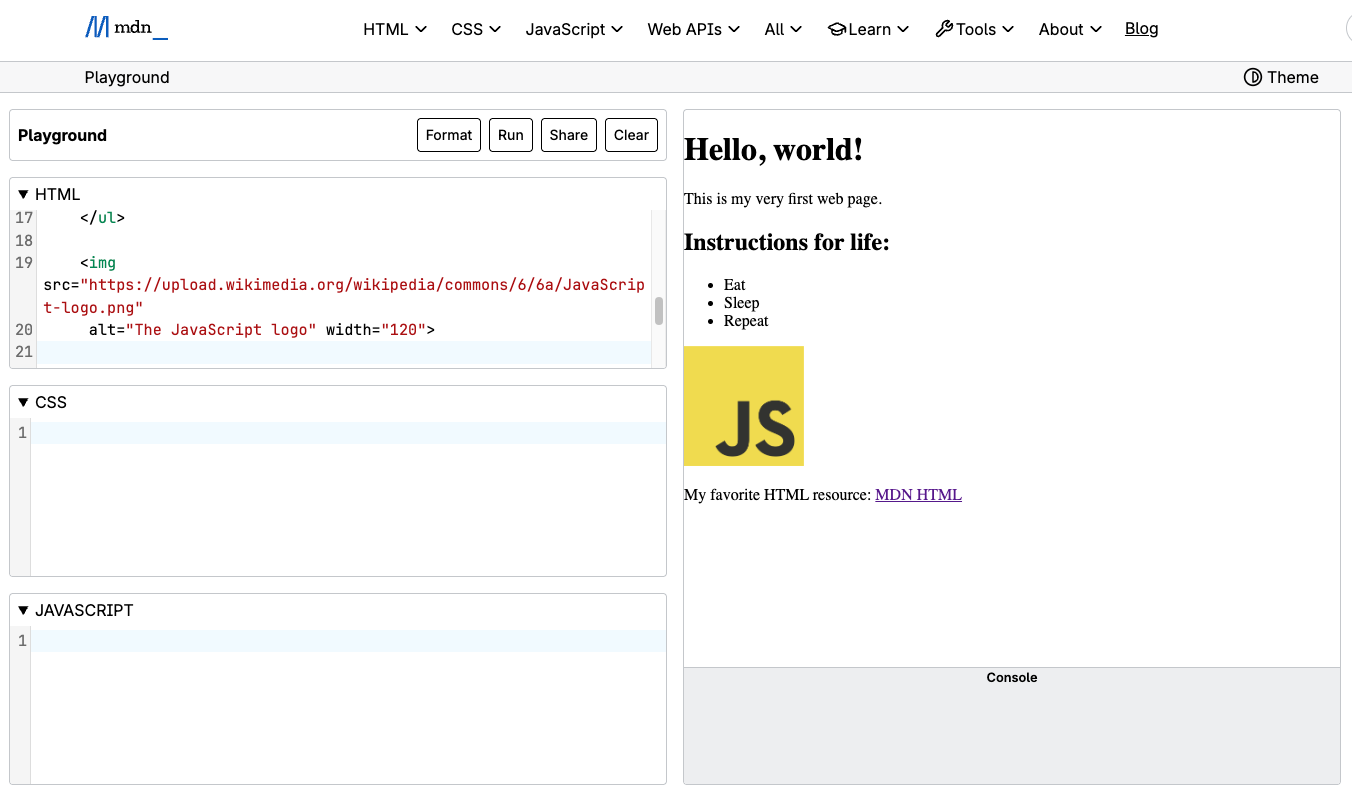
You've now used text, lists, links, and images - the foundation of every website. You've learned about the required elements of an HTML page, as well as some often used optional elements. In the next section, you will see how you can stylize these elements and how they are presented using a special language made especially for webpages.
Source: Khalil Abdullah and Saylor University
 This work is licensed under a Creative Commons Attribution 4.0 License.