
Styling with CSS
- 1e Describe the purpose and use of CSS in developing web content (CLO 1)
- 1f Apply introductory CSS styling techniques to a basic HTML page (CLO 5)
Adding CSS To Your First HTML Page
In the previous section, you built your first HTML page. Now let's apply CSS to it and customize how it looks. In this lesson you'll use CSS (Cascading Style Sheets) to add color, change fonts, and control spacing. You'll write a few simple CSS rules and see instantly how they affect the page.
Step 1 - Open the MDN Playground
- Go to MDN Playground.
- If needed, click New → HTML.
- In the editor panel, paste the following starter code.
Step 2 - Add Some HTML
Let's use our HTML from section 1.2 as our guinea pig to see what adding CSS will do. First, copy the following HTML into Playground:
<!doctype html>
<html lang="en">
  <head>
    <meta charset="utf-8">
    <meta name="viewport" content="width=device-width, initial-scale=1">
    <title>Styling Practice</title>
    <style>
      /* You'll add your CSS here */
    </style>
  </head>
  <body>
    <h1>Hello CSS!</h1>
    <p>This page uses Cascading Style Sheets to add color and style to HTML.</p>
    <h2>My To-Do List</h2>
    <ul>
      <li>Finish this exercise</li>
      <li>Drink some coffee</li>
      <li>Build my portfolio site</li>
    </ul>
  </body>
</html>
You'll place your CSS rules inside the <style> tag between <head> and </head>.
Step 3 - Add Your First CSS Rules
In the HTML window of Playground, find the <style> section, and replace " /* You'll add your CSS here */" with the following:
body {
  background-color: #f0f8ff;   /* light blue background */
  font-family: Arial, sans-serif;
  color: #222;
}
h1 {
  color: darkred;
  text-align: center;
}
h2 {
  color: navy;
  border-bottom: 2px solid lightgray;
  padding-bottom: .25rem;
}
ul {
  background-color: #fff;
  border: 1px solid lightgray;
  border-radius: 6px;
  padding: 10px 20px;
  list-style-type: square;
}
Press Run to preview your styled page. Notice how each rule targets an HTML element (body, h1, h2, ul) and changes its appearance.
An Important Note About "Specificity" - In CSS, the order of precedence (often called "specificity") determines which style wins when multiple rules target the same element. Inline styles (added directly to an HTML tag) have the highest priority and will override both internal (<style> tags) and external (linked .css files) stylesheets. Between internal and external styles, the rule defined last in the HTML document-typically the one lower down in the <head> section-takes precedence.
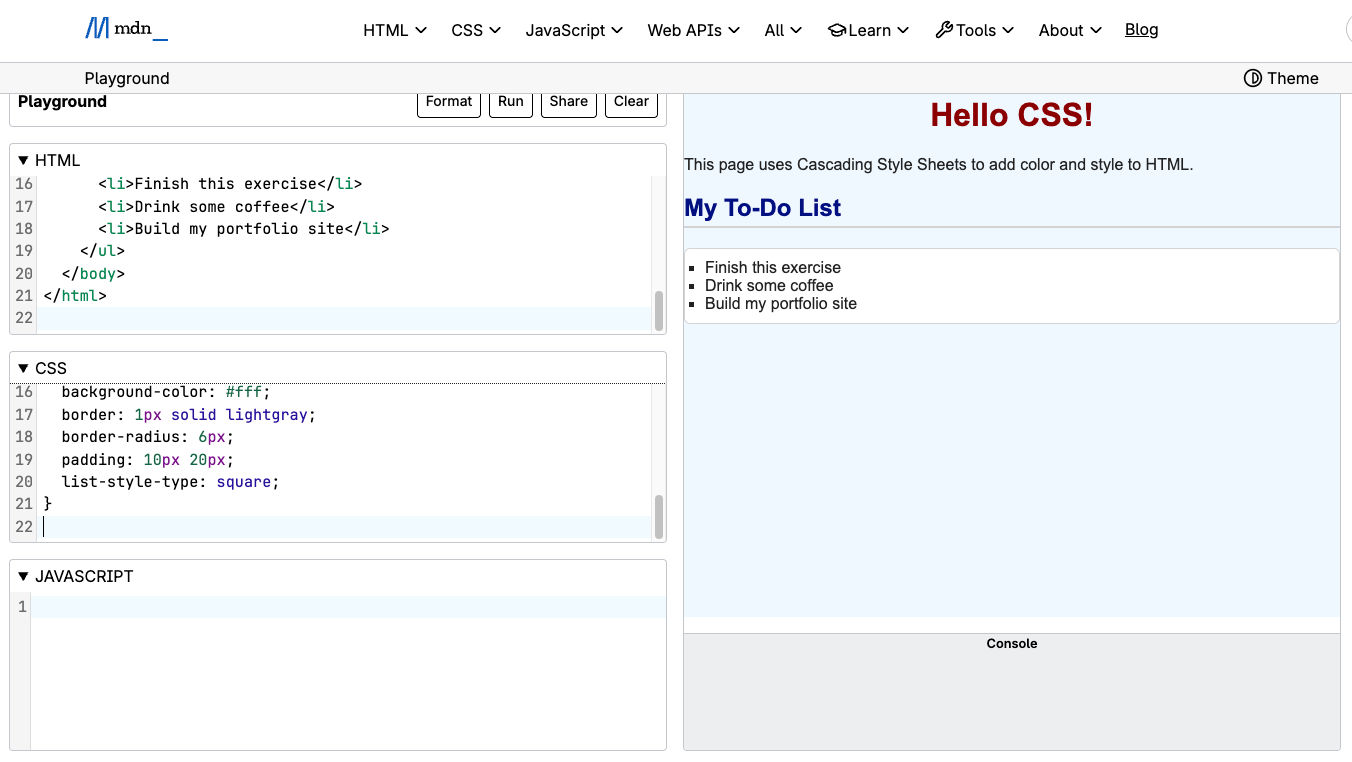
How It Works
Each CSS rule follows the same pattern:
selector {
  property: value;
}
- Selector → which HTML element(s) to style.
- Property → the visual feature you're changing (color, font, border…).
- Value → the setting for that property.
Example:
p { color: blue; }
means "Make all paragraphs blue".
Make It Yours
Try the following experiments right in the Playground:
- Change the page background to
lightyellowor#ffeedd. - Make all
<p>text italic (font-style: italic;). - Add a rule for links (
<a>) that changes their color to green. - Add
li { margin-bottom: 6px; }to space out list items.
You'll see each change live as you type, giving you instant feedback!
Check Your Work and Key Takeaways
Your page should include:
- A background color different from white
- Headings styled with at least one color change
- Modified text (font or style) for paragraphs
- At least one new property you chose yourself
If all of these are true, you've successfully applied introductory CSS styling! Let's take a look at some key Takeaways that we'll return to and develop in Unit 3 of this course:
- CSS controls the presentation of HTML content.
- Rules consist of selectors, properties, and values.
- CSS can be written inside a
<style>tag or in an external.cssfile. - The browser "cascades" rules from broad to specific, deciding which style wins.
Source: Khalil Abdullah and Saylor University
 This work is licensed under a Creative Commons Attribution 4.0 License.
Source: NUS Hackers
This work is licensed under a Creative Commons Attribution 4.0 License.