
What's in the Body?
- 2e Explain the components of the body of an HTML document (CLO 2)
<body> element, which is where all the content that users actually see lives. You'll learn how to add and organize headings, paragraphs, images, links, and lists to give your page both structure and meaning. The body defines how your content is arranged and displayed in the browser, and learning how to use its elements correctly will help you create pages that are easy to read, accessible, and ready to style with CSS later. Let's dig in and learn how a well-structured body gives every webpage its shape, flow, and visual rhythm.
What the Body Does
The <body> section is where everything you can actually see on a webpage lives - text, images, links, lists, tables, forms, and more.
If the <head> is your site's blueprint, the <body> is the house itself. It's what the browser displays to users, styled later with CSS and sometimes made interactive with JavaScript.
Every HTML document has exactly one <body> element, and it always comes after the <head>.
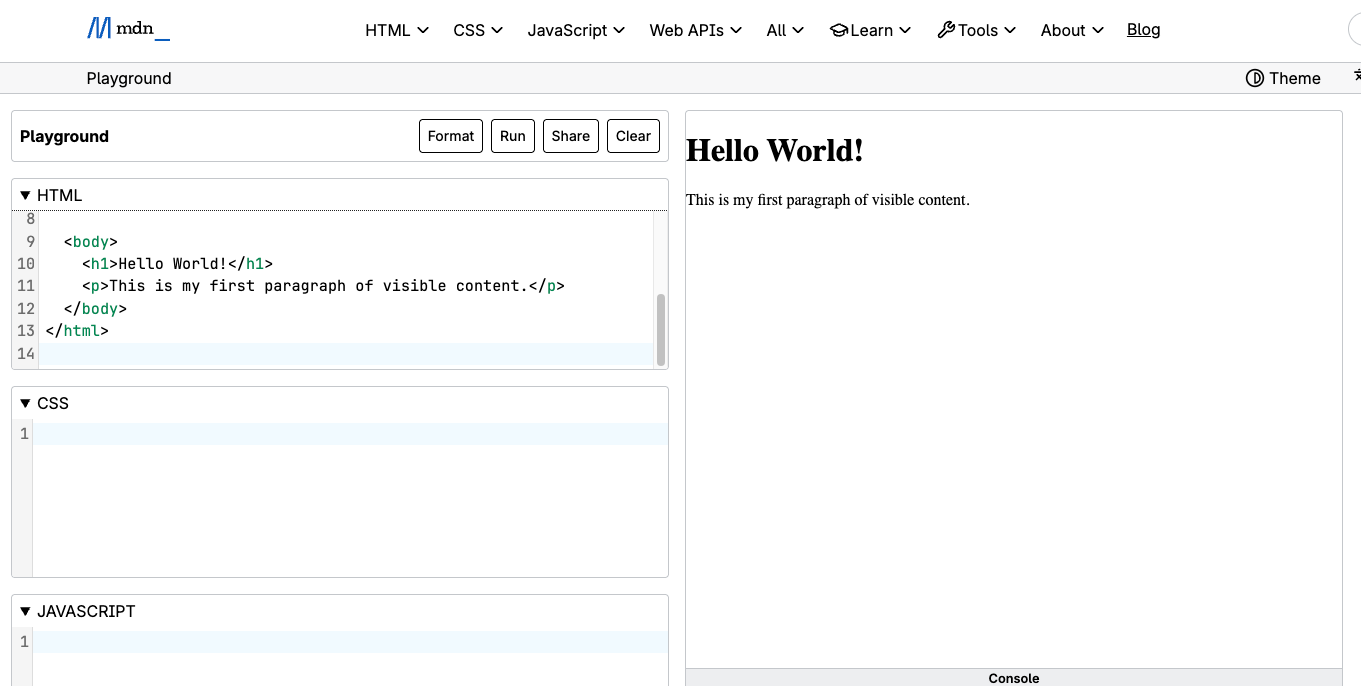
Example:
<!doctype html>
<html lang="en">
  <head>
    <meta charset="utf-8">
    <title>My First Page</title>
  </head>

  <body>
    <h1>Hello World!</h1>
    <p>This is my first paragraph of visible content.</p>
  </body>
</html>
What Goes Inside the Body
The <body> holds all the elements that make up the content and structure of your page. You can think of them as the building materials that stack and arrange your information.
Common elements include:
| Element | Purpose | Example |
|---|---|---|
<h1>–<h6> |
Headings for titles and subtitles | <h1>Welcome</h1> |
<p> |
Paragraphs of text | <p>This is a paragraph.</p> |
<a> |
Links to other pages or sites | <a href="https://example.com">Visit Example</a> |
<img> |
Images with alt text | <img src="photo.jpg" alt="A scenic mountain view"> |
<ul> / <ol> + <li> |
Lists (unordered or ordered) | <ul><li>Item</li></ul> |
<div> |
Generic block container for grouping content | <div class="container"></div> |
<section> |
Groups related content within a page | <section><h2>About</h2></section> |
<header> / <footer> |
Define top and bottom sections of the page | <header><h1>Site Title</h1></header> |
Table with three columns, Element, Purpose, and Example, listing eight common HTML body elements including headings, paragraphs, links, images, lists, div, section, and header or footer, with the purpose and an example of each.
Block vs. Inline Elements
Inside the body, HTML elements fall into two main types:
| Type | Behavior | Example |
|---|---|---|
| Block-level elements | Start on a new line, take up full width | <h1>, <p>, <div>, <section> |
| Inline elements | Stay within a line of text | <a>, <em>, <strong>, <img> |
Table with three columns, Type, Behavior, and Example, contrasting block-level elements, which start on a new line and take up full width, with inline elements, which stay within a line of text.
Block elements are used for structure, while inline elements add emphasis, links, or small visual changes inside those blocks.
Nesting Elements Correctly
HTML is all about structure - each tag should open and close in a logical order.
Correct:
<section>
  <h2>My Hobbies</h2>
  <p>I love hiking and photography.</p>
</section>
Incorrect:
<p><section>My Hobbies</section></p> <!-- Invalid nesting -->
Rule: Blocks can contain inline or other block elements, but inline elements should never wrap blocks.
Word to the Wise: The "Box Inside a Box" Rule
Think of HTML elements like a set of nesting dolls. For your code to work correctly, an element must be fully contained within its "parent" element.
For example, a <section> acts like a container (the parent). Any <h2> or <p> tags inside it are its "children".
- Correct Nesting:
<section> <h2>Title</h2> </section>(The child is tucked safely inside). - The Golden Rule: You must close your tags in the reverse order you opened them. If you open a
<div>and then a<p>, you must close the</p>before you close the</div>.
Why this Matters for Your CSS:
When you write a rule like nav a, you are telling the browser to "find the nav parent and style the a children inside it". If your nesting is messy, the browser won't be able to find those children, and your styles won't appear!
Pro-Tip for Students: The "Staircase" Visual
If you use the Tab key to indent your code, good nesting looks like a staircase. If a closing tag doesn't line up vertically with its opening tag, that's a huge red flag that your nesting is off!
What the Browser Does with the Body
When a browser loads your page, it:
- Reads the
<body>content. - Builds a Document Object Model (DOM) - a representation, often visual, of the internal structure of your page.
- Displays the visible elements on screen in the order they appear in the HTML.
Later, CSS will style these elements, and JavaScript can interact with them - but the body is always where it all begins.
Try It Now: What's in Your Body?
- Open the MDN Playground (https://developer.mozilla.org/en-US/play).
- Copy and paste this starter template:
<!doctype html>
<html lang="en">
  <head>
    <meta charset="utf-8">
    <title>Practice: What's in the Body?</title>
  </head>

  <body>
    <!-- Add your content here -->
  </body>
</html>
- Inside the
<body>tags, add the following:- A main heading (
<h1>) for your page title - One paragraph describing what your page is about
- An unordered list (
<ul>) with three items - A link to your favorite website
- One image (you can use any public image URL with
<img src="...">)
- A main heading (
- Run your code and make sure everything appears correctly.
- Try moving your image above or below your paragraph - see how block order affects layout.
Quick Checklist
Common Fixes
- Putting visible content in the
<head>: If you expect to see it on the page, it belongs in the<body>, not the<head> - Using more than one
<body>element: Every HTML document must have exactly one<body>, no more no less - Incorrect nesting of elements: Block elements should not be wrapped inside inline elements like
<p>or<a> - Using
<div>for everything: It can seem like an attractive thing to do, but it creates more problems than solutions. Browers prefer meaningful elements like<section>,<header>, and<footer>when they fit the purpose. Use the <div> tag when you need a generic container to group content for styling or layout purposes and no semantic HTML element accurately describes the content's meaning. - Expecting layout or styling without CSS: The
<body>defines structure and order - appearance comes later with CSS
Reflection
- What kinds of content belong in the body versus the head?
- Why does element order matter in the body?
- How can proper structure make your CSS styling easier later?
Source: Khalil Abdullah and Saylor University This work is licensed under a Creative Commons Attribution 4.0 License.
Source: Kevin Powell
This work is licensed under a Creative Commons Attribution 4.0 License.