
HTML Forms: User Input and Interaction
- 2e Explain the components of the body of an HTML document (CLO 2)
Webpages are not just meant to display information; they are also meant to collect it. Forms are the primary way users interact with a website by entering data, making selections, or submitting requests. As you dive into how HTML forms function as structured components within the //body> of a document, you will examine the core elements used to gather user input. These core elements include <form>, <label>, <input>, <textarea>, and <button>. It is also important to understand how they work together to create meaningful, organized interaction.
As you work through this material, focus on structure and purpose. Ask yourself: What information is being collected? How is it grouped? How does the form communicate meaning to the browser?
In this course, you will focus on how forms fit into the structure of a webpage, not how they interact with the backend (the server). That is for another time and another course. Mastering this foundation ensures that when we later style forms with CSS and improve them for accessibility, you are working from clean, semantic HTML.
What are Forms, and Why They Belong in the Body
Up to this point, you've focused on content that users read - headings, paragraphs, images, and lists. None of these elements are inherently interactive.They are structural tags that organize, label, and display content, but they do not respond to user input or perform actions. Forms are different. Forms allow users to interact with your page.
A form collects information from the user and sends it somewhere - often to a server for processing. Even if you are not building the backend (or server side) yet, the structure of a form is still part of the visible content of your webpage. Since we are not building anything backend, we will focus on form structure and function, as well as getting our forms to deliver results.
Because forms appear on the page and collect user input, they belong inside the <body> of your HTML document. Let's look at how a form is structured and created …
The Core Structure of a Form
At its simplest, a form looks like this:
<form action="#" method="post">
  <label for="name">Name</label>
  <input id="name" name="name" type="text">

  <button type="submit">Submit</button>
</form>
Let's break down the essential pieces:
<form>
The <form></form> element wraps all user input fields, and lets the browser know that everything in between is user input.
actiontells the browser where to send the datamethodtells the browser how to send the data (usually"get"or"post")
For now, we use action="#" because we are not connecting to a backend yet.
<label>
The <label> describes an input field.
<label for="email">Email</label>The for attribute connects the label to a specific input using the input's id.
<input>
The <input> element creates different types of user input fields.
Common types you will use:
<input type="text">
<input type="email">
<input type="password">
<input type="radio">
<input type="checkbox">
<input type="submit">
Inputs usually include:
id- connects to the labelname- identifies the data when submittedplaceholder- shows example textrequired- prevents submission if empty
Example:
<input id="email" name="email" type="email" placeholder="you@example.com" required>
<textarea>
Used for longer text input.
<label for="message">Message</label>
<textarea id="message" name="message" rows="4"></textarea>
<button>
Creates a clickable button. The <button> is the most common and most easily recognizable method for submitting forms.
<button type="submit">Send Message</button>
Grouping Related Options
When users must choose between related options, we group inputs using <fieldset> and <legend>. Example: selecting a favorite color.
<form>
  <fieldset>
    <legend>Choose your favorite color</legend>

    <input type="radio" id="blue" name="color" value="blue">
    <label for="blue">Blue</label>

    <input type="radio" id="green" name="color" value="green">
    <label for="green">Green</label>

  </fieldset>
</form>
<fieldset>groups related inputs<legend>describes the group
This keeps the structure organized and meaningful.
Radio vs. Checkbox
Radio buttons:
- Only one option can be selected
- All radio inputs must share the same
name
Checkboxes:
- Multiple options can be selected
- Each checkbox may share a name or use separate names
Developer Rule of Thumb
If the user is typing, selecting, or submitting something, it belongs inside a <form>.
If inputs are related, group them.If an input exists, it should have a label.If users must choose only one option, use radio buttons.If multiple options are allowed, use checkboxes.
Structure first. Styling comes later.
Try It Now (MDN Playground)
Paste the following into MDN Playground:
<!doctype html>
<html lang="en">
<head>
  <meta charset="utf-8">
  <title>Form Practice</title>
</head>
<body>

  <h1>Contact Me</h1>

  <form action="#" method="post">

    <label for="name">Name</label><br>
    <input id="name" name="name" type="text" required><br><br>

   <label for="email">Email</label><br>
    <input id="email" name="email" type="email" required><br><br>

    <fieldset>
      <legend>Preferred Contact Method</legend>

      <input type="radio" id="contact-email" name="contact" value="email">
      <label for="contact-email">Email</label>

      <input type="radio" id="contact-phone" name="contact" value="phone">
      <label for="contact-phone">Phone</label>
    </fieldset><br>

    <label for="message">Message</label><br>
    <textarea id="message" name="message" rows="4"></textarea><br><br>

    <button type="submit">Send</button>

  </form>

</body>
</html>
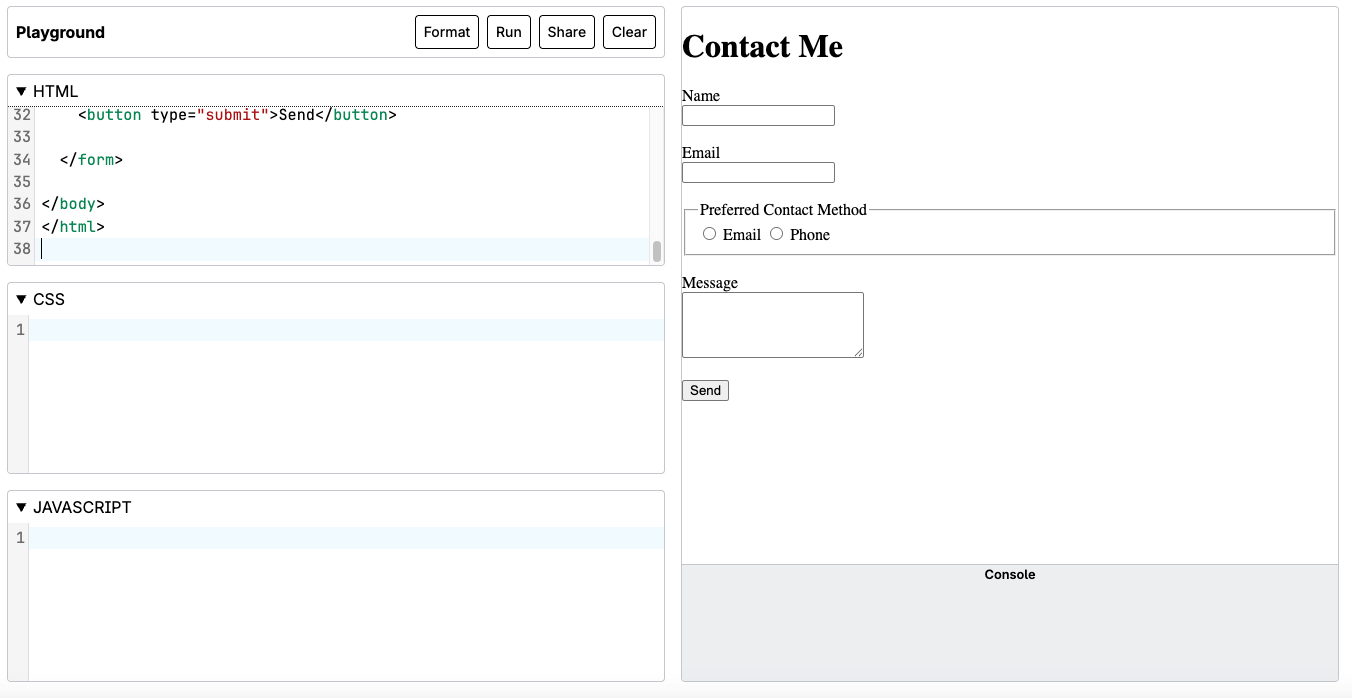
Mini Practice
- Change the page title
- Add one checkbox option
- Add a password field
- Modify the legend text
Focus on structure, not styling.
Common Fixes
Using inputs without labels - Every input should have a corresponding <label> element.
Forgetting to match for and id - The label's for value must match the input's id.
Using radio buttons without the same name - Radio buttons only work correctly when they share the same name.
Placing inputs outside the <form> - All interactive inputs must be inside a <form> element.
Forgetting type="submit" on buttons - Without it, the form may not submit as expected.
Using placeholder text instead of labels - Placeholders are hints. They are not replacements for labels.
Reflection
Forms are part of the body because they collect visible user input. They rely on structure, not styling, to function correctly. Understanding how <form>, <label>, <input>, <textarea>, <fieldset>, and <button> work together prepares you to build interactive pages that move beyond static content.
In the next units, you will style these forms with CSS and later improve them further for accessibility and real-world usability.
- Video 1: HTML Forms How to Submit and Encode Data Dev Concepts
- Video 2: HTML Tutorial 16 Form Inputs
Source: Khalil Abdullah and Saylor University
 This work is licensed under a Creative Commons Attribution 4.0 License.
Source: SoftUni
This work is licensed under a Creative Commons Attribution 4.0 License.
Source: VoidRealms
This work is licensed under a Creative Commons Attribution 4.0 License.