
CSS Selectors
- 3d Use CSS selectors to target HTML elements based on attributes, types, and states to apply specific styling rules on a webpage (CLO 5)
What are Selectors?
Selectors tell CSS which elements to style. Once you've selected the right elements, you can apply properties like color, size, spacing, borders, and more. In this section, you'll practice the most common selectors you'll use every day.
Core Selector Types (you'll use these constantly)
- Type selector - targets all elements of a given type
p { color: #444; } - Class selector - reusable label you attach with the class attribute
.highlight { background: #fff3cd; }HTML example:
<p class="highlight">Important note</p>
- ID selector - a unique identifier used once per page
#hero { padding: 2rem; }HTML example:
<section id="hero">Welcome</section>
- Attribute selector - targets by attribute or attribute value
a[target="_blank"] { text-decoration: underline; } input[type="email"] { border: 1px solid #999; } - State (pseudo-class) selector - targets dynamic states (hover, focus, etc.)
a:hover { color: #0a66c2; }
input:focus { outline: 2px solid #0a66c2; }
button:disabled { opacity: 0.6; cursor: not-allowed; }
Try It Now (MDN Playground)
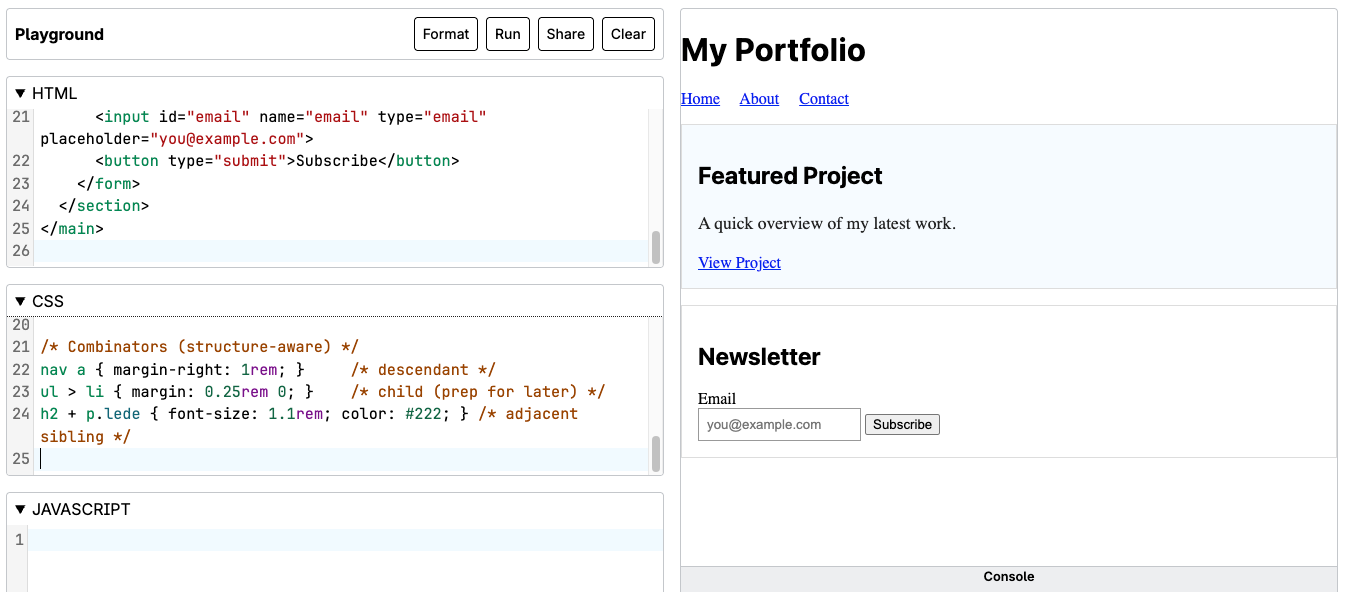
Open Playground and paste in the following. Notice how each selector targets HTML in a different way to apply styling rules intentionally. Type selectors apply broad styles to all matching elements, class and ID selectors target specific sections or unique elements, and attribute and state selectors respond to element properties or user interaction. Together, these selectors give you precise control over what gets styled, where, and when - which is the core skill you are practicing in this section.
HTML
<header>
  <h1 id="site-title">My Portfolio</h1>
  <nav>
    <a href="index.html" class="nav-link">Home</a>
    <a href="about.html" class="nav-link">About</a>
    <a href="contact.html" class="nav-link" target="_blank">Contact</a>
  </nav>
</header>

<main>
  <section class="card featured">
    <h2>Featured Project</h2>
    <p class="lede">A quick overview of my latest work.</p>
    <a href="#" class="button">View Project</a>
  </section>

  <section class="card">
    <h2>Newsletter</h2>
    <form>
      <label for="email">Email</label><br>
      <input id="email" name="email" type="email" placeholder="you@example.com">
      <button type="submit">Subscribe</button>
    </form>
  </section>
</main>
CSS
/* 1) Type selectors */
h1, h2 { font-family: system-ui, Arial, sans-serif; }
p { color: #444; line-height: 1.6; }

/* 2) Class selectors */
.card { border: 1px solid #ddd; padding: 1rem; margin: 1rem 0; }
.featured { background: #f5fbff; }

/* 3) ID selector (unique element) */
#site-title { letter-spacing: 0.5px; }

/* 4) Attribute selectors */
a[target="_blank"] { text-decoration: underline; }
input[type="email"] { border: 1px solid #999; padding: 0.5rem; }

/* 5) State (pseudo-class) selectors */
.nav-link:hover { color: #0a66c2; }
input:focus { outline: 2px solid #0a66c2; }
button:disabled { opacity: 0.6; cursor: not-allowed; }

/* Combinators (structure-aware) */
nav a { margin-right: 1rem; }     /* descendant */
ul > li { margin: 0.25rem 0; }    /* child (prep for later) */
h2 + p.lede { font-size: 1.1rem; color: #222; } /* adjacent sibling */
Experiment (2–3 minutes):
- Change
.featuredbackground to a subtle yellow (#fffbea). - Add
a.button:hover { background: #0a66c2; color: white; }then addclass="button"to the "View Project" link in the HTML if it's missing. - Add
button:focus { outline: 2px solid #222; }and tab to the button to see the focus style.
PRO TIP: The best place to add the second and third bullets would be be beneath /* 5) State (pseudo-class) selectors */ This is because 1) We are affecting "state", so let's keep those closely grouped; 2) Readability of code is very important - easy to read, easy to understand and debug; and 3) The C in CSS stands for "Cascading" so by keeping state changes toward the bottom of the file (or at least after the base styles), you ensure they naturally override the default "static" styles defined earlier.
Selector "Cheat Sheet" (starter set)
| Goal | Selector | Example |
|---|---|---|
| All paragraphs | Type | p { … } |
| Reusable style | Class | .card { … } |
| Unique element | ID | #hero { … } |
| By attribute | Attribute | input[placeholder] { … } |
| By attribute value | Attribute equals | a[target="_blank"] { … } |
| Hover state | Pseudo-class | a:hover { … } |
| Focus state | Pseudo-class | input:focus { … } |
| First child | Pseudo-class | li:first-child { … } |
| Inside a container | Descendant | .card p { … } |
| Direct child | Child | ul > li { … } |
| Next sibling | Adjacent | h2 + p { … } |
Table with three columns, Goal, Selector, and Example, listing eleven common CSS selector goals such as targeting all paragraphs, reusable styles, unique elements, attributes, hover and focus states, and structural relationships like descendant, child, and adjacent sibling, with the selector type and example syntax for each.
Practice: Target Precisely
- Attribute practice. Add this HTML somewhere in
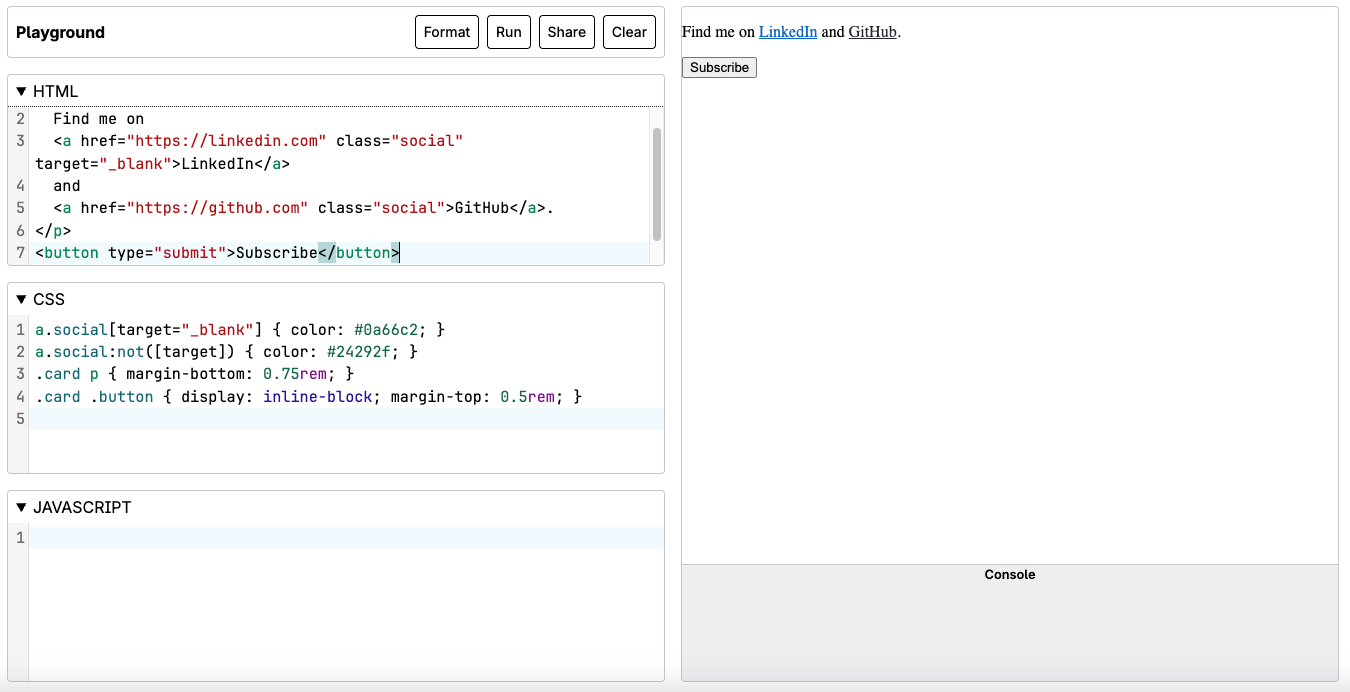
<main>:<p> Find me on <a href="https://linkedin.com" class="social" target="_blank">LinkedIn</a> and <a href="https://github.com" class="social">GitHub</a>. </p>
Then add CSS:
a.social[target="_blank"] { color: #0a66c2; }
a.social:not([target]) { color: #24292f; }
You just styled links differently based on attributes.
- Disable the Subscribe button temporarily:
<button type="submit" disabled>Subscribe</button>
Confirm your
button:disabledstyles apply. Then removedisabledand tab to the button to see:focus. - Practice with combinators by adding:
.card p { margin-bottom: 0.75rem; }
.card .button { display: inline-block; margin-top: 0.5rem; }
You just scoped paragraph spacing and button placement only inside cards.
Practice: Target Precisely (Forms Edition)
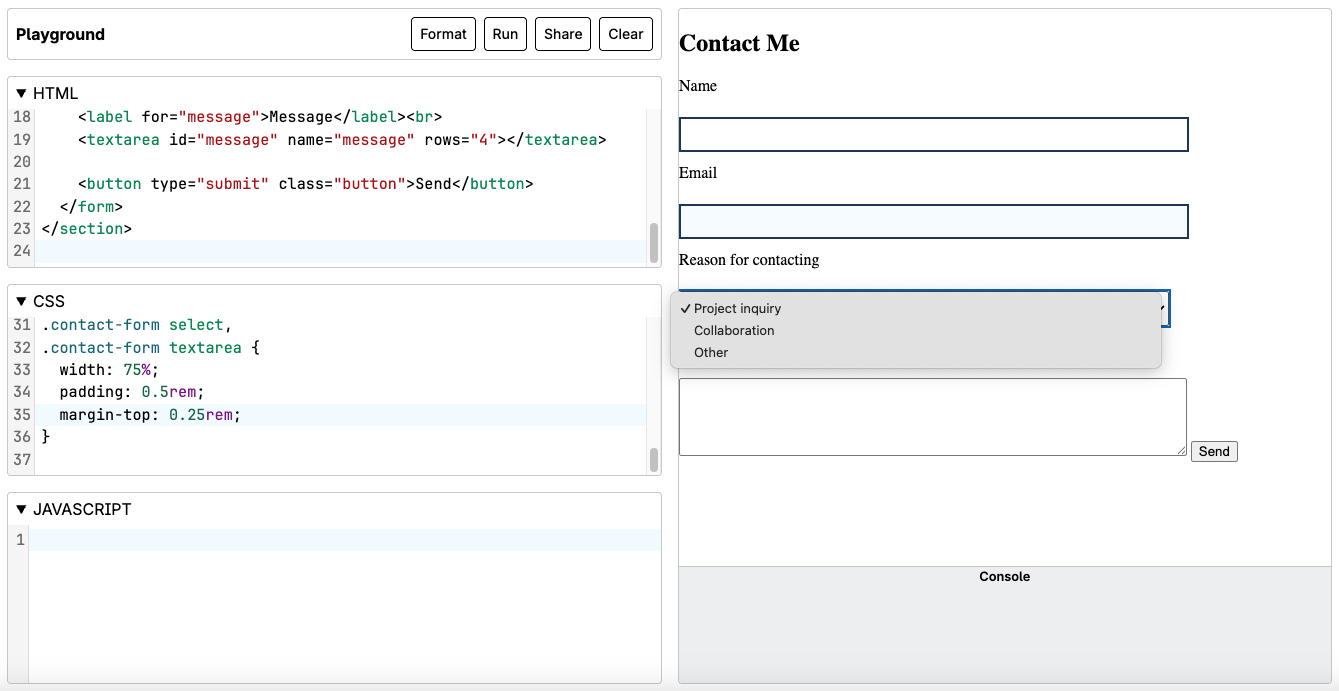
Forms are one of the most interactive parts of any website, and styling them requires precision. Unlike general content, form elements respond to attributes (like required or type="email") and user states (like :focus or :disabled), which means your selectors must be intentional. In this exercise, you'll practice targeting form elements accurately so your styles apply exactly where - and when - you want them to.
1) Add this HTML Somewhere In <main>
<section class="card">
  <h2>Contact Me</h2>

  <form class="contact-form">
    <label for="full-name">Name</label><br>
    <input id="full-name" name="full-name" type="text" required>

    <label for="email">Email</label><br>
    <input id="email" name="email" type="email" required>

    <label for="reason">Reason for contacting</label><br>
    <select id="reason" name="reason">
      <option value="project">Project inquiry</option>
      <option value="collab">Collaboration</option>
      <option value="other">Other</option>
    </select>

    <label for="message">Message</label><br>
    <textarea id="message" name="message" rows="4"></textarea>

    <button type="submit" class="button">Send</button>
  </form>
</section>
2) Then Add this CSS
/* Attribute targeting */
input[required],
select[required] {
  border: 2px solid #1d3557;
}

/* Target by input type */
input[type="email"] {
  background: #f5fbff;
}

/* State selectors */
input:focus,
textarea:focus,
select:focus {
  outline: 2px solid #0a66c2;
}

button:disabled {
  opacity: 0.6;
  cursor: not-allowed;
}

/* Scoped selectors (only inside this form) */
.contact-form label {
  display: block;
  margin-top: 0.75rem;
}

.contact-form input,
.contact-form select,
.contact-form textarea {
  width: 75%;
  padding: 0.5rem;
  margin-top: 0.25rem;
}
3) Quick Mini-Challenges (2–3 minutes)
A. Add one attribute and target it. Update the Name input to include a minimum length:
<input id="full-name" name="full-name" type="text" required minlength="2">
Then add CSS:
input[minlength] {
  border-style: dashed;
}
B. Disable the button temporarily.
<button type="submit" class="button" disabled>Send</button>
Confirm your button:disabled styles apply, then remove disabled
C. Confirm focus styles work. Tab through the form and make sure :focus styles appear on inputs/select/textarea
What you Just Practiced
You targeted form elements precisely using:
- attributes (
[required],[minlength],[type="email"]) - states (
:focus,:disabled) - scoping (
.contact-form inputso you don't accidentally style every input on the whole site)
That is exactly the "real world" CSS skill behind forms: style the right fields, in the right place, at the right time
Common Pitfalls to Avoid
- Don't overuse
#idselectors; prefer classes for reusable styles. - Avoid inline styles (
style="...") in real projects; keep CSS in stylesheets. - Be specific enough to target correctly, but not so specific that you can't reuse styles.
- Remember that class selectors (
.class) are more flexible than type selectors (p,h2) as your site grows.
Common Fixes - CSS Selectors
- Using
#idwhen you really want a class: IDs should be unique. If you plan to reuse a style, switch#hero→.hero. - Forgetting the dot or hash in selectors:
.cardtargets a class,#site-titletargets an ID -cardorsite-titlealone won't work. - Over-styling with type selectors: Rules like
p { … }affect every paragraph. Scope them (.card p) when styles should apply only in certain areas. - Attribute selectors not matching:
a[target="_blank"]only works if the attribute exists and matches exactly - double-check the HTML. - Expecting
:hoveror:focusto work without interaction: Hover requires a mouse, focus requires tabbing with the keyboard - test both intentionally. - Selectors too specific to reuse later: Long chains like
main section.card.featured p.ledeare hard to maintain. Simplify when possible.
Reflection
- When would you choose a class vs. an ID?
- How did
:hoverand:focuschange usability? - Which selector let you target the fewest elements for the most impact?
Summary
You practiced selecting elements by type, class, ID, attribute, and state, and used simple combinators to scope styles by structure. These are the day-one tools for writing clear, maintainable CSS that targets exactly what you intend - skills you'll use immediately when styling your portfolio in the next subunit.
For more practice, https://developer.mozilla.org/en-US/docs/Web/CSS/CSS_selectors
- Video 1: HTML and CSS Basics - CSS Selectors
- Video 2: Form Styling Essentials | The basics to modern CSS tips & tricks
Source: Khalil Abdullah and Saylor University This work is licensed under a Creative Commons Attribution 4.0 License.
Source: Christopher Stein
This work is licensed under a Creative Commons Attribution 4.0 License.
Source: Kevin Powell
This work is licensed under a Creative Commons Attribution 4.0 License.