
Using Block Level Elements
- 2b Explain the fundamental structure and essential elements of a webpage (CLO 2)
- 2c Use HTML elements correctly within a document structure (CLO 4)
What Are Block-Level Elements?
In the last subunit, you learned that HTML gives every webpage its structure - a head for information and a body for content. Now, we'll zoom in on the body and learn how to organize content using block-level elements - the foundation of readable, well-organized web pages.
A block-level element starts on a new line and stretches across the full width of its parent container. Think of them as the building blocks of your webpage - like the rooms inside a house. Each block defines a distinct section of content, often holding text, images, or other blocks.
Common block-level elements include:
<header> <main> <section> <article> <nav> <aside> <footer> <h1>–<h6> <p> <div> <ul> <ol> <li> <form>
Inline vs. Block Elements
Type | Example | Behavior Block-level | <p>, <div>, <section>, <h1> | Starts on a new line and takes full width Inline | <a>, <em>, <strong>, <img> | Stays within a line of text
You'll use block-level elements to group and arrange content, and inline elements to style or link content inside those blocks.
Basic Document Layout
Here's an example of how block-level elements work together to create clear structure:
<body>
  <header>
   <h1>My Webpage</h1>
   <p>A place to learn and build!</p>
  </header>
  <main>
   <section>
    <h2>About This Site</h2>
    <p>This page is made with HTML block elements that give content structure and meaning.</p>
   </section>
   <section>
    <h2>My Interests</h2>
    <ul>
     <li>Design</li>
     <li>Music</li>
     <li>Teaching</li>
    </ul>
   </section>
  </main>
  <footer>
   <p>© 2025 My Webpage</p>
  </footer>
</body>
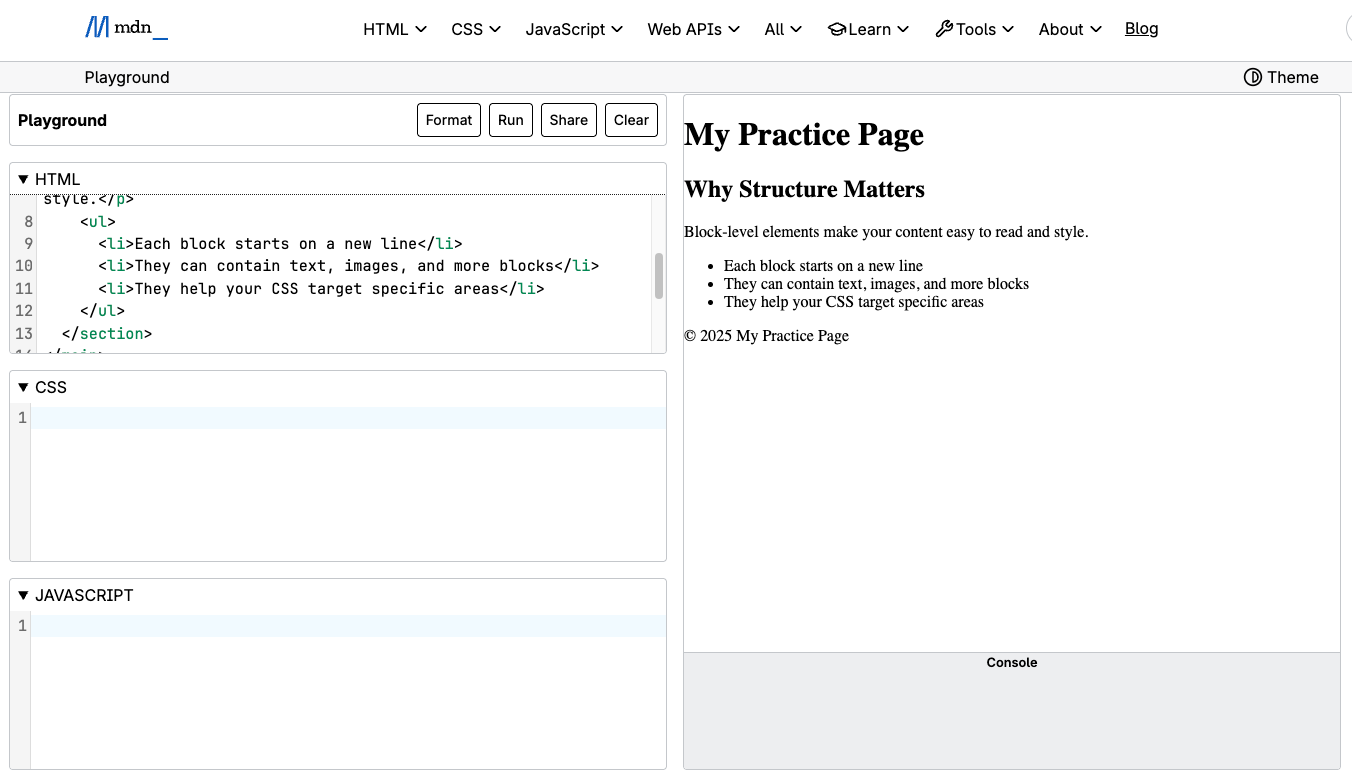
Notice that everything is nested logically - each major block has a clear purpose:
<header>introduces the page<main>contains the primary content<section>groups related information<footer>wraps up the page
The <div> and Why It Matters
The <div> element (short for division) is the most flexible block-level element. It doesn't add meaning by itself - it's just a container. You'll often use <div> to group elements for styling or layout purposes, especially before you've learned CSS layout techniques.
Example:
<div class="intro">
  <h2>Welcome!</h2>
  <p>This section introduces my site.</p>
</div>
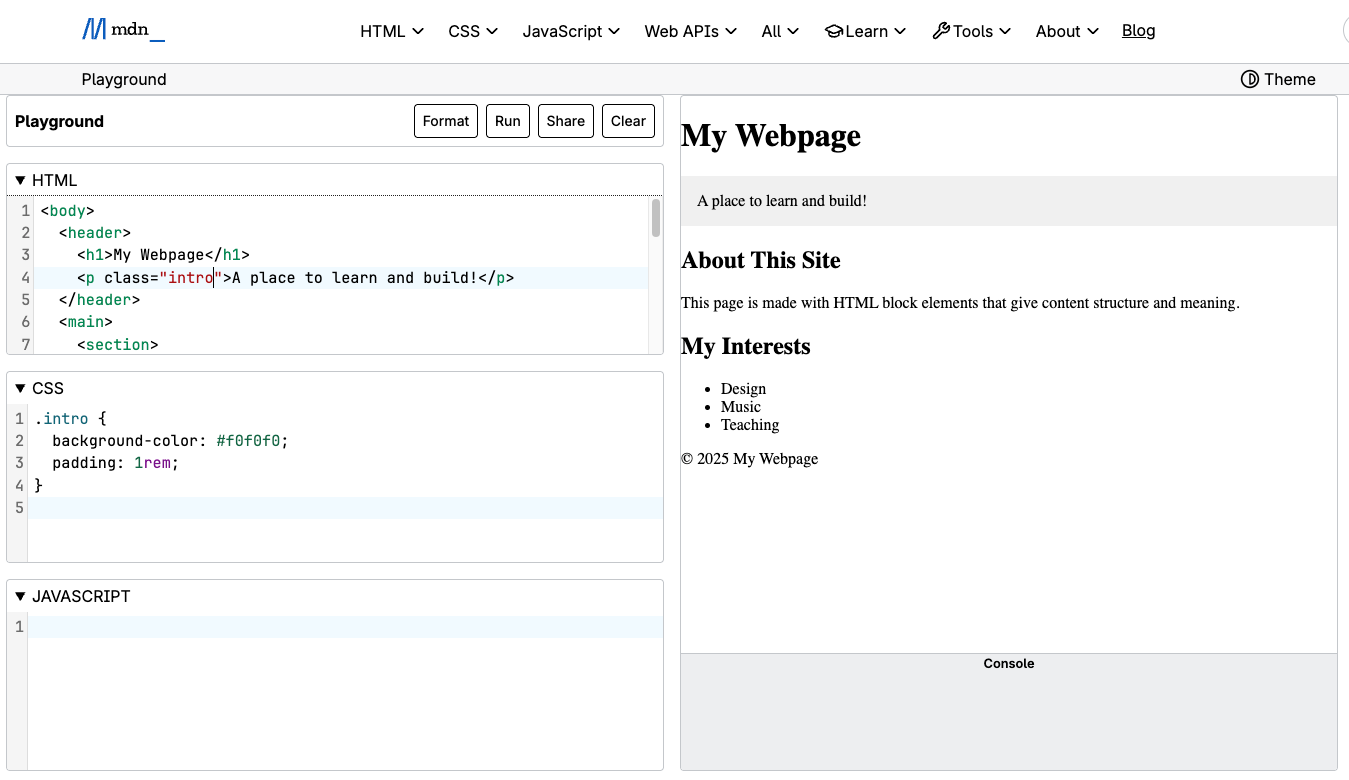
Later, you might style it in CSS, by adding what is called a "class selector". Class selectors are a way of identifying HTML elements with a particular set of CSS rules. We will learn more about them and other ways to implement CSS in Unit 3:
.intro {
  background-color: #f0f0f0;
  padding: 1rem;
}
And be sure to assign the class "intro" to an HTML element, as in the following:<p class="intro">A place to learn and build!</p>
Using Nesting Correctly
Block-level elements can be placed inside one another - this is called nesting. Proper nesting keeps your page readable for both humans and browsers.
Correct:
<section>
  <h2>My Goals</h2>
  <p>I want to learn web development.</p>
</section>
Incorrect:
<p><section>My Goals</section></p> <!-- This is invalid nesting -->
Rule of thumb: Blocks can contain other blocks or inline elements, but inline elements should never wrap block elements.
Practice It (MDN Playground)
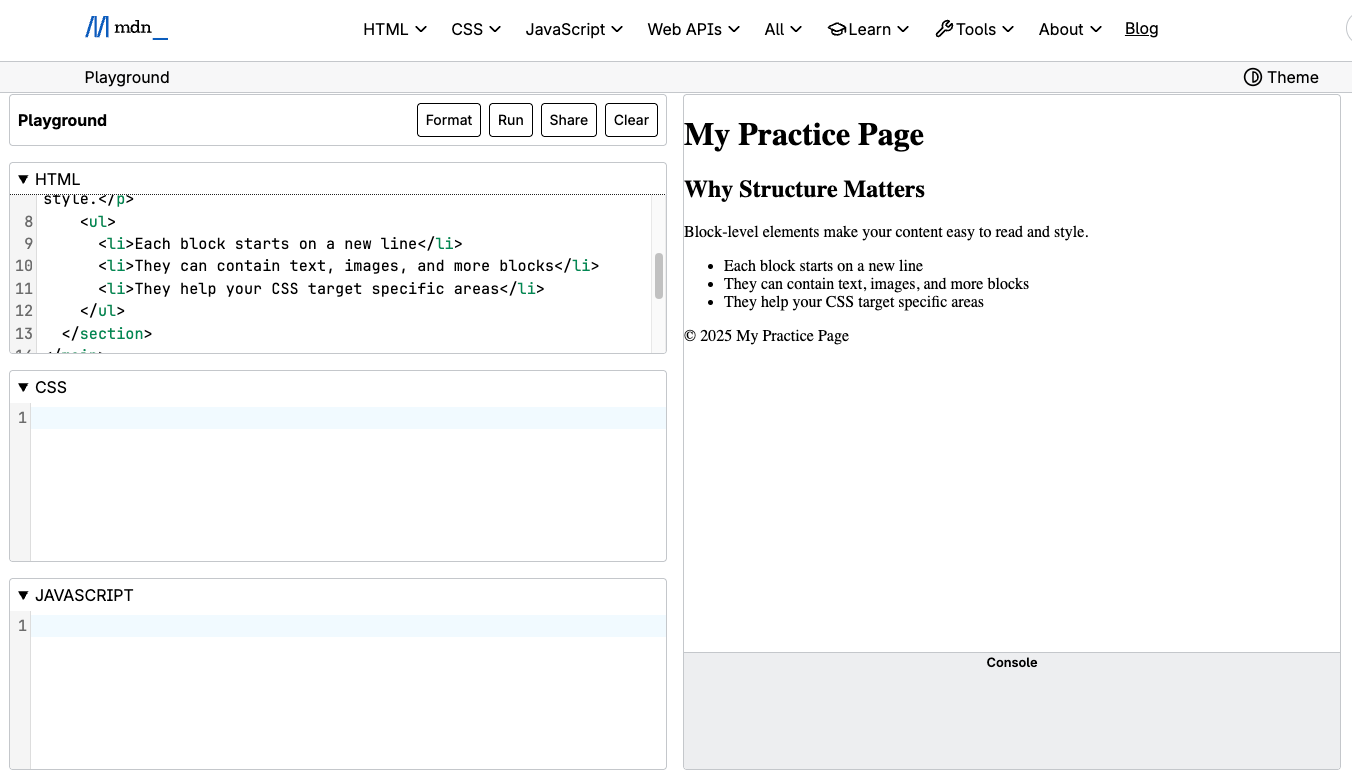
Try this in the MDN Playground (https://developer.mozilla.org/en-US/play) to see block-level behavior in action:
<header>
  <h1>My Practice Page</h1>
</header>
<main>
  <section>
   <h2>Why Structure Matters</h2>
   <p>Block-level elements make your content easy to read and style.</p>
    <ul>
      <li>Each block starts on a new line</li>
      <li>They can contain text, images, and more blocks</li>
      <li>They help your CSS target specific areas</li>
   </ul>
  </section>
</main>

<footer>
  <p>© 2025 My Practice Page</p>
</footer>
Try adding a second <section> under <main> with your own heading and paragraph. Notice how it automatically stacks beneath the first one - that's how block-level elements create natural structure!
Try It Now: Build Your First Structured Page
Open the MDN Playground (https://developer.mozilla.org/en-US/play) and create a mini webpage that uses at least four block-level elements correctly.
Your goal:
Create a small, well-structured HTML page introducing yourself.
Follow the structure below as a guide (but make it your own):
<header>
  <h1>Your Name</h1>
  <p>A short tagline about who you are</p>
</header>
<main>
  <section>
   <h2>About Me</h2>
   <p>Write one or two sentences describing yourself.</p>
  </section>
  <section>
   <h2>My Interests</h2>
   <ul>
    <li>First interest</li>
    <li>Second interest</li>
    <li>Third interest</li>
   </ul>
  </section>
</main>
<footer>
  <p>© 2025 Your Name</p>
</footer>
Steps:
- Copy this code into a new Playground tab.
- Replace the placeholder text with your own info.
- Add one more block element of your choice (like
article,aside, ordiv). - Make sure all your elements are nested correctly - no
p; tags wrapping sections! - Run it and check the structure visually: each section should start on a new line.
Quick Checklist:
One <header> and one <footer>
<main> contains at least two <section> elements
One list (<ul> + <li>) inside a section
Proper nesting - no block elements inside inline tags
Valid HTML that runs cleanly in the Playground
Common Fixes: Block-Level Elements
Problem: Content appears squished together on one line Fix: Make sure you're using block-level elements like <p>, <section>, or <div> instead of inline elements like <span> or <a> Block-level elements automatically start on a new line
Problem: Sections don't seem to group content clearly Fix: Wrap related content inside a <section> with a heading (<h2> or <h3>) Sections without headings lose much of their structural meaning
Problem: HTML looks correct but behaves strangely Fix: Check for invalid nesting A very common mistake is wrapping block elements inside inline elements
❌ Incorrect:
<p><section>Content</section></p>
✅ Correct:
<section>
  <p>Content</p>
</section>
Problem: Overusing <div> everywhere Fix: Use semantic block elements first (<header>, <main>, <section>, <footer>) Reserve <div> for grouping content when no semantic element fits or when preparing for CSS styling
Problem: CSS styles don't apply as expected Fix: Confirm the class is applied to the correct block-level element A common issue is styling a class in CSS but forgetting to add it to the HTML element
.intro {
  padding: 1rem;
}

<div class="intro">...</div>
Problem: Lists don't behave or display correctly Fix: Ensure <li> elements are always inside <ul> or <ol> List items should never stand alone
Problem: Page structure feels flat or confusing Fix: Check that your document follows a logical top-down structure: <header> → <main> → <section> → <footer> This makes pages easier to read, debug, and style later with CSS
Reflection Questions:
- What makes a block element different from an inline element?
- Why does proper nesting make web pages easier to style with CSS later?
- How could you reuse this structure for your portfolio project?
Optional Reading:
MDN - Structuring documents with HTMLhttps://developer.mozilla.org/en-US/docs/Learn_web_development/Core/Structuring_content/Structuring_documents
Source: Khalil Abdullah and Saylor University
 This work is licensed under a Creative Commons Attribution 4.0 License.
Source: Kevin Powell
This work is licensed under a Creative Commons Attribution 4.0 License.