
CSS First Steps
- 3c Implement the basic structure and syntax of CSS, including how stylesheets define font, color, layout, and other presentation properties for webpages (CLO 5)
Now that you've seen how CSS changes the look and feel of a page, it's time to start writing your own styles from scratch.
A stylesheet is simply a list of rules that describe how HTML elements should appear. Each rule targets an element (like a paragraph or heading) and defines one or more properties - such as color, font, or spacing.
For now, we'll write our CSS inside the HTML file so you can immediately see results as the page publishes. External stylesheets will be introduced and used consistently in the course project, where they better support multi-file workflows and site-wide styling.
Building Your First Styles
You'll begin with a simple HTML file that includes a <style> section inside the <head>. The first example shows what the code looks like when linking to an external CSS file. The second example uses internal CSS within the <style></style> tag. This lets you focus on learning CSS syntax and behavior without worrying about file linking or deployment delays.
HTML
<!DOCTYPE html>
<html lang="en">
  <head>
    <meta charset="UTF-8" />
    <meta name="viewport" content="width=device-width, initial-scale=1.0" />
    <title>My First Styled Page</title>
    <link rel="stylesheet" href="style.css" />
  </head>
  <body>
    <h1>Welcome to My Page</h1>
    <p>This is my first experiment with CSS.</p>
    <p>Watch how styles change the mood and readability of a page.</p>
  </body>
</html>
CSS
/* Basic Page Setup */
body {
  background-color: #f9f9f9;
  color: #333;
  font-family: system-ui, Arial, sans-serif;
  margin: 2rem;
  line-height: 1.6;
}

/* Headings */
h1 {
  color: #005f73;
  text-align: center;
  letter-spacing: 1px;
}

/* Paragraphs */
p {
  font-size: 1.1em;
  margin-bottom: 1rem;
}
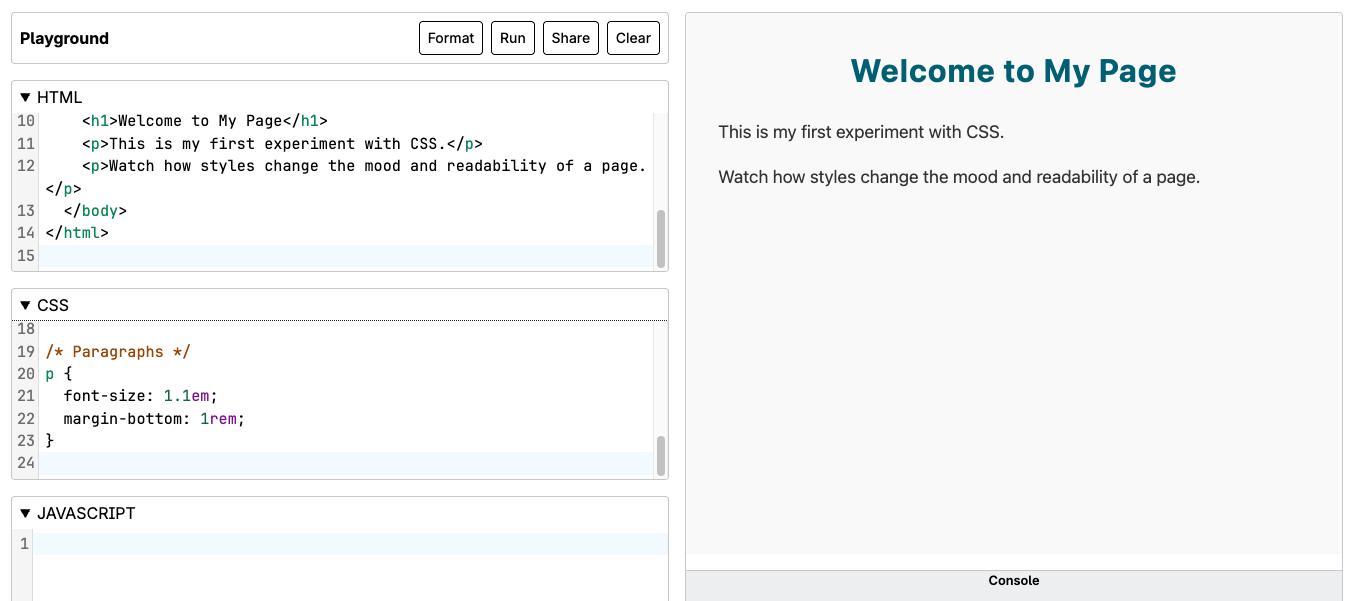
Or, the same can be written together internally and run in the HTML panel of Playground as follows:
HTML
<!DOCTYPE html>
<html lang="en">
  <head>
    <meta charset="UTF-8" />
    <meta name="viewport" content="width=device-width, initial-scale=1.0" />
    <title>My First Styled Page</title>

    <style>
      /* Basic Page Setup */
      body {
        background-color: #f9f9f9;
        color: #333;
        font-family: system-ui, Arial, sans-serif;
        margin: 2rem;
        line-height: 1.6;
      }

      /* Headings */
      h1 {
        color: #005f73;
        text-align: center;
        letter-spacing: 1px;
      }

      /* Paragraphs */
      p {
        font-size: 1.1em;
        margin-bottom: 1rem;
      }
    </style>
  </head>

  <body>
    <h1>Welcome to My Page</h1>
    <p>This is my first experiment with CSS.</p>
    <p>Watch how styles change the mood and readability of a page.</p>
  </body>
</html>
Try It
Run this page and observe how the styles affect layout and readability. Then experiment by making small changes:
- Change the background color to a pale blue (
#e0f7fa) - Change the heading color to
#d62828
Add a rule for all links: a { color: teal; }
These changes apply instantly and help you see how CSS rules shape a page.
Understanding CSS Rules and Selectors
Each rule in your stylesheet follows a predictable pattern:
selector {
  property: value;
}
- Selector: identifies which element(s) the rule applies to
- Property: what you want to change
- Value: how you want it to appear
You can target multiple elements in one rule by separating them with commas:
h1, h2, h3 {
  font-family: 'Georgia', serif;
  color: darkslateblue;
}
Or create more focused rules by targeting elements inside others. This rule will be applied to all paragraph tags within the main block:
main p {
  color: #a6a6a6;
}
The Cascade and Specificity
"Cascading" in CSS means that when multiple rules apply to the same element, the browser uses a hierarchy to decide which rule wins.
Here's a quick overview, ordered in precedence:
- Inline styles override everything else.
- Internal styles (in the
<style>tag) override external stylesheets. - External stylesheets are applied last but can still be overridden by more specific selectors.
If two rules have equal importance, the browser applies the one written last in the stylesheet.
Try experimenting with this:
p {
  color: green;
}

p {
  color: blue;
}
The text will be blue, because that rule came last.
Formatting and Layout Basics
CSS also defines spacing, alignment, and structure on your page. Here are a few key layout properties to start with:
| Property | Example | What It Does |
|---|---|---|
margin |
margin: 2rem; |
Space outside an element |
padding |
padding: 1rem; |
Space inside an element's border |
border |
border: 2px solid #333; |
Adds a visible border |
width / height |
width: 300px; |
Defines the element's size |
text-align |
text-align: center; |
Aligns text within an element |
Table with three columns, Property, Example, and What It Does, listing five common CSS layout properties: margin, padding, border, width and height, and text-align, with an example value and description for each.
Try adjusting the margins and alignment in your h1 rule to see how layout changes affect readability.
Practice It Now
In MDN Playground, create a new file with this code:
HTML
<h2>My Favorite Hobbies</h2>
<ul>
  <li>Photography</li>
  <li>Travel</li>
  <li>Web Design</li>
</ul>
CSS
h2 {
  color: #023047;
  border-bottom: 2px solid #ffb703;
  padding-bottom: 0.5rem;
}

ul {
  list-style-type: square;
  padding-left: 1.5rem;
}

li {
  color: #219ebc;
  margin: 0.3rem 0;
}
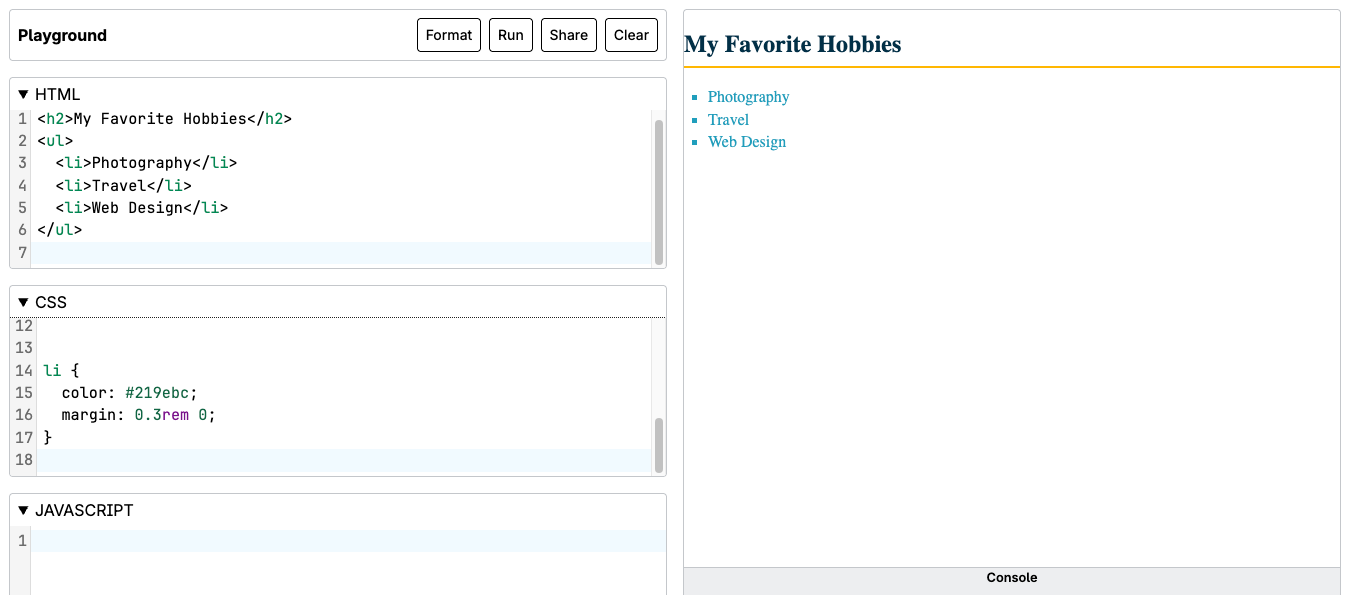
Challenge:
- Add another hobby and watch the list style apply automatically.
- Change the border color or width to customize your design.
- Try a different list style by replacing
squarewith one of the following:circle,lower-roman, ornone. If you are really curious, do a search for "list-style types in css". There are a lot of options to choose from!
Common Fixes - CSS First Steps
- Styles not applying at all: Make sure your CSS is inside a
<style>tag in the<head>(or correctly linked later in the project). CSS outside<style>or placed in the<body>won't work as expected. - Forgetting semicolons (
;): Each CSS declaration must end with a semicolon. Missing one can cause the browser to ignore the rest of the rule. - Misspelled selectors or properties: CSS is unforgiving -
backgroud-colororfont-famlywon't work. Double-check spelling. - Styles overridden unexpectedly: If a style "doesn't stick", another rule may be overriding it. Remember: rules written later win when specificity is equal.
- Expecting CSS to change content: CSS only controls appearance, not text or structure. If content needs to change, that's an HTML edit.
- Editing the wrong file or panel: When using Playground or previews, make sure you're editing the same HTML/CSS that's actually being rendered.
Reflection
- How does the "cascade" affect which CSS rules are applied?
- Why is using an external stylesheet a best practice for real-world projects?
- What are the most useful CSS properties you used in this activity?
Summary
In this section, you practiced writing CSS from scratch, linking stylesheets, and experimenting with selectors, properties, and values. You learned how CSS rules cascade, how layout properties shape content spacing, and how visual styling enhances readability and user experience.
You now have the foundation needed to style your portfolio project in creative, professional ways.
For more practice stylizing web content with CSS, click here - https://developer.mozilla.org/en-US/docs/Learn/CSS/First_steps
Source: Khalil Abdullah and Saylor University This work is licensed under a Creative Commons Attribution 4.0 License.