
Introduction to CSS Layouts
- 4a Explain normal flow and how elements are laid out (CLO 2)
- 4b Use CSS layout to control element positioning and presentation (CLO 5)
From Styling to Structure
Up to now, you've focused on how elements look. Now you'll focus on how they fit together. A page's layout controls the visual structure - how text, images, and sections line up on the screen. In other words, layout isn't just about if a page looks cool. It is about how your content is presented and how it flows. If the message you are delivering flows for the site visitor, then they will stay on your site, plain and simple. CSS gives you the tools to create balanced pages that work on any device, and to deliver your content in original and effective ways.
Let's start by first understanding how a web browser interprets and presents HTML pages.
Normal Flow - How Browsers Lay Out a Page by Default
Every HTML document starts with what's called normal flow. This is the browse's default layout mode before you add any CSS rules.
- Block-level elements (like
<h1>or<p>) stack vertically, one on top of another. The title "Normal Flow -" above, followed by the paragraph below it, and then this bullet point list below that are perfect examples of block-level elements. - Inline elements (like
<a>or<span>) sit next to each other on the same line until there's no space left, then wrap down. This entire bullet point is filled with inline element examples - including the code to make "Inline elements" bold, to make<a>or<span>green, as well as the fonts and spacing. - Lastly, browsers have their own baseline defaults built in to control what is minimally necessary in presenting a webpage. For example, browsers automatically add default margins and padding so text doesn't touch edges.
Example
Let's look at
<h1>Normal Flow Example</h1>
<p>By default, this paragraph stacks vertically below the header because they are block-level elements.</p>
<p>Inline elements like this text and this link <a href="#">links</a> appear side by side.</p>
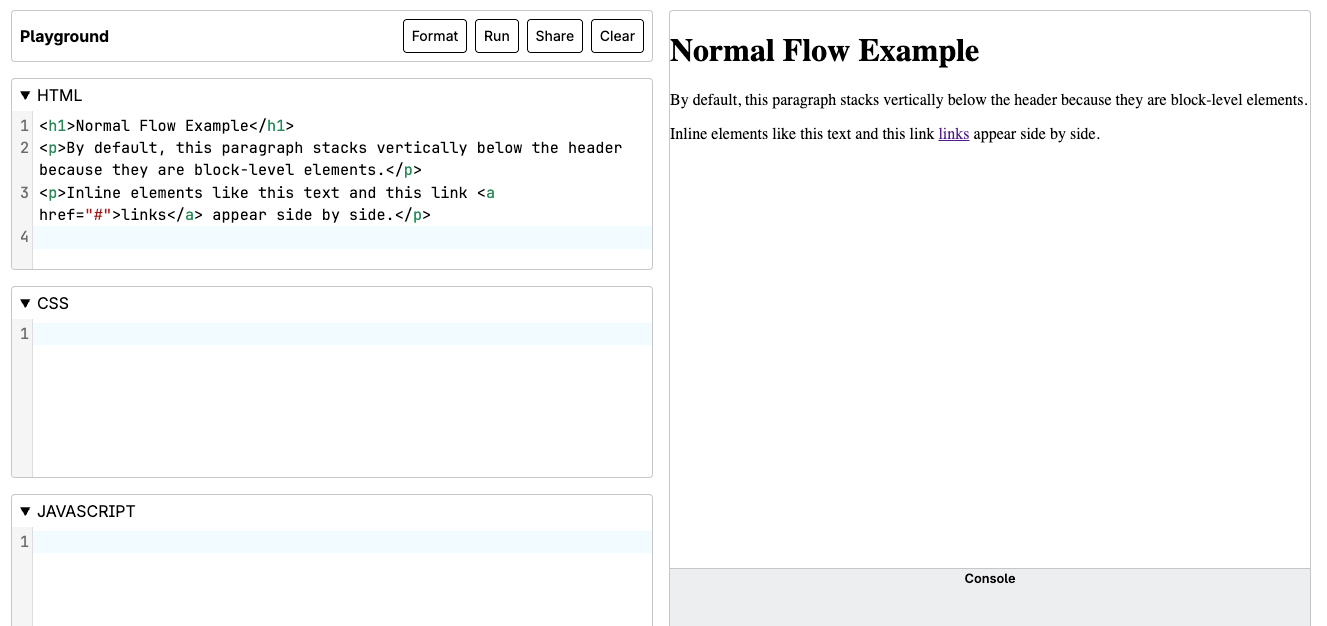
If you opened this page with no CSS, the content would still be readable - that's the beauty of normal flow. CSS just gives you ways to change how those elements behave.
Changing Layout Behavior
If CSS is the means to completely customize the presentation of your web content, then understanding normal flow is really about understanding what is the baseline structure that you are working with. Now that you understand normal flow, you can use CSS to override it for specific design needs. For example:
1. Display
Controls how an element is rendered in flow. Common values include:
div { display: block; }       /* starts on a new line */
span { display: inline; }     /* stays within a line */
nav li { display: inline-block; } /* behaves like both */
2. Float
Originally for images in text, now used for simple side-by-side layouts.
img { float: right; margin: 0 0 1rem 1rem; }
3. Position
Lets you place elements precisely.
header { position: fixed; top: 0; width: 100%; }
static is default; other options include relative, absolute, and fixed.
4. Flexbox and Grid
Modern CSS layout systems for designing rows, columns, and responsive patterns.
- Flexbox (one-dimensional): best for toolbars, cards, or small sections.
- Grid (two-dimensional): best for overall page structure.
We will introduce you to Flex and Grid here, and examine them in detail in Unit 6.
Common Layout Types
There are three main approaches you'll see in modern web design.
- Fixed layout - uses set pixel widths. • Simple to build but can break on small screens.
main { width: 960px; margin: 0 auto; }
- Fluid layout - uses percentages or relative units (vw, em, %). • Adapts to screen size without media queries.
main { width: 80%; margin: auto; }
- Responsive layout - combines fluid measurements with media queries to adjust designs for different devices.
@media (max-width: 600px) {
  main { width: 95%; padding: 1rem; }
}
Try It Now (Playground)
Open the MDN Playground and paste this starter code.
HTML
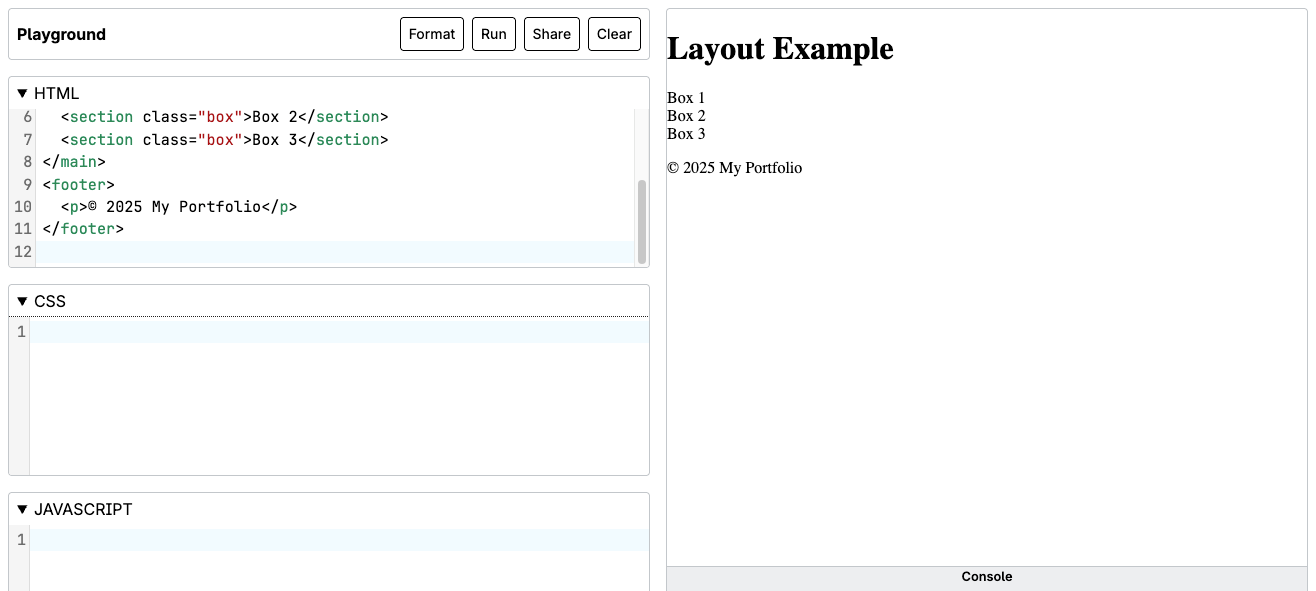
<header>
  <h1>Layout Example</h1>
</header>
<main>
  <section class="box">Box 1</section>
  <section class="box">Box 2</section>
  <section class="box">Box 3</section>
</main>
<footer>
  <p>© 2025 My Portfolio</p>
</footer>
CSS
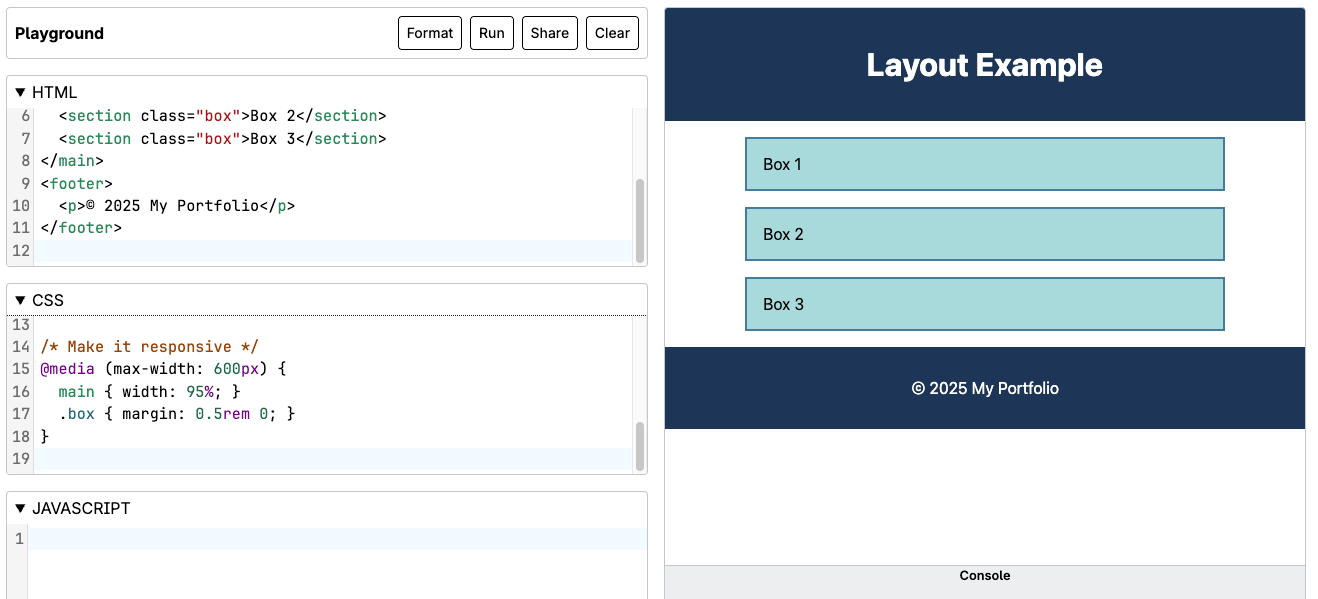
body { font-family: system-ui; margin: 0; }
header, footer { background: #1d3557; color: white; text-align: center; padding: 1rem; }
.box {
  background: #a8dadc;
  border: 2px solid #457b9d;
  padding: 1rem;
  margin: 1rem;
}

/* Try fluid vs. fixed */
main { width: 80%; margin: auto; }

/* Make it responsive */
@media (max-width: 600px) {
  main { width: 95%; }
  .box { margin: 0.5rem 0; }
}
Experiment:
- Change the width from
80%to600px. Resize the window to see how each behaves. - Adjust the media query breakpoint and background colors to understand how responsive design works.
Common Fixes - Layout Types and Responsive Layouts
- Elements stacking "wrong" when you expect a layout Remember that normal flow stacks block elements vertically by default - layout only changes when you apply CSS rules like
display,float,flex, orgrid. - Layout breaks on small screens Fixed widths (like
width: 960px) don't adapt - switch to percentages or add a media query for narrower viewports. - Content feels cramped or touches the edges Check for missing
marginorpadding, especially onbody,main, and section elements. - Media query not triggering Verify the breakpoint condition (
max-widthvsmin-width) and test by actually resizing the browser window. - Inline and block behavior misunderstood If elements won't sit side-by-side, confirm whether they're block-level and whether
display: inline-blockor a layout system is needed. - Overcomplicating layout too early Start with normal flow and simple width rules first - Flexbox and Grid are powerful, but they work best once the base structure is solid.
Reflection
- How does normal flow affect the way you start structuring a page?
- What are the trade-offs between fixed, fluid, and responsive layouts?
- How might you apply these concepts to your portfolio project?
Summary
Normal flow is the foundation of CSS layout - the browser's default way of stacking content. By learning how to override that flow with layout tools like display, float, and position, you gain control over where elements appear. You also saw how fixed, fluid, and responsive layouts shape the user experience across devices. Next, you'll explore the modern systems that make this process easier called Flexbox and Grid.
Source: Khalil Abdullah and Saylor University
 This work is licensed under a Creative Commons Attribution 4.0 License.
Source: Kevin Powell
This work is licensed under a Creative Commons Attribution 4.0 License.