
Practical HTML Examples
- 6a Implement HTML elements to create structured web content (CLO 6)
Up to this point, you've learned what HTML elements are and how they work. Now it's time to apply those skills in a real project context - writing clean, structured HTML that could actually ship on a live website.
In this subunit, you will practice using core structural, text, media, and navigation elements to build realistic page layouts. You will not be memorizing every HTML tag - instead, you will focus on the small set of elements used on nearly every professional website.
The Core HTML Elements You'll Actually Use
These are the elements you'll use constantly in real projects.
1. Page Structure Elements
These define the main layout of a page:
<!doctype html>→ tells the browser this is modern HTML<html>→ wraps the entire document<head>→ holds page metadata<body>→ holds all visible content
2. Semantic Layout Elements
These give your page meaning and structure. A semantic layout element is an HTML tag that clearly describes the purpose and type of the content it contains to both the browser and the developer. This contrasts with non-semantic elements like <div> and <span>, which convey no inherent meaning about their content.:
<header>→ site or section header<nav>→ navigation links<main>→ main page content<section>→ grouped content block<article>→ standalone content (blog post, card, etc)<footer>→ footer information
Semantic layout elements help with accessibility, SEO, and screen readers.
Core Text & Content Elements
These shape the actual information your users read:
<h1>to<h6>→ headings<p>→ paragraphs<ul>,<ol>,<li>→ lists<a>→ links<strong>→ importance<em>→ emphasis
These elements define content meaning, not appearance. CSS handles appearance.
Images & Media
For most student projects, this is the key element:
<img>→ displays images- Requires:
src→ image pathalt→ accessibility description
Example:
<img src="images/profile.jpg" alt="Photo of Alex smiling at a desk">
Forms & Interaction
By now you should readily recognize the following associations of form tag and their function:
<form>→ collects user input<input>→ text boxes, checkboxes, etc<label>→ describes inputs<button>→ clickable actions
The Developer's Rule of Thumb
You do not need to memorize all HTML elements.
Instead, always ask:
"What is this content supposed to mean?"
- Is it a heading? → use
<h2> - Is it navigation? → use
<nav> - Is it a group of related content? → use
<section> - Is it a standalone item? → use
<article> - Is it pure styling with no meaning? → use
<div>or<span>sparingly
This mindset is what separates real developers from copy-and-paste coders.
Try This in MDN Playground
Paste this into the MDN Playground and modify it:
<!doctype html>
<html lang="en">
<head>
  <meta charset="utf-8">
  <title>HTML Practice Page</title>
</head>
<body>

  <header>
    <h1>My First Structured Page</h1>
    <nav>
      <a href="#">Home</a> |
      <a href="#">About</a> |
      <a href="#">Contact</a>
    </nav>
  </header>

  <main>
    <section>
      <h2>About Me</h2>
      <p>This page is built using real semantic HTML.</p>
      <ul>
        <li>Structured layout</li>
        <li>Clean headings</li>
        <li>Accessible images</li>
      </ul>
    </section>

    <section>
      <h2>Featured Image</h2>
      <img src="https://placehold.co/300x200" alt="Sample placeholder image">
    </section>
  </main>

  <footer>
    <p>© 2025 Your Name</p>
  </footer>

</body>
</html>
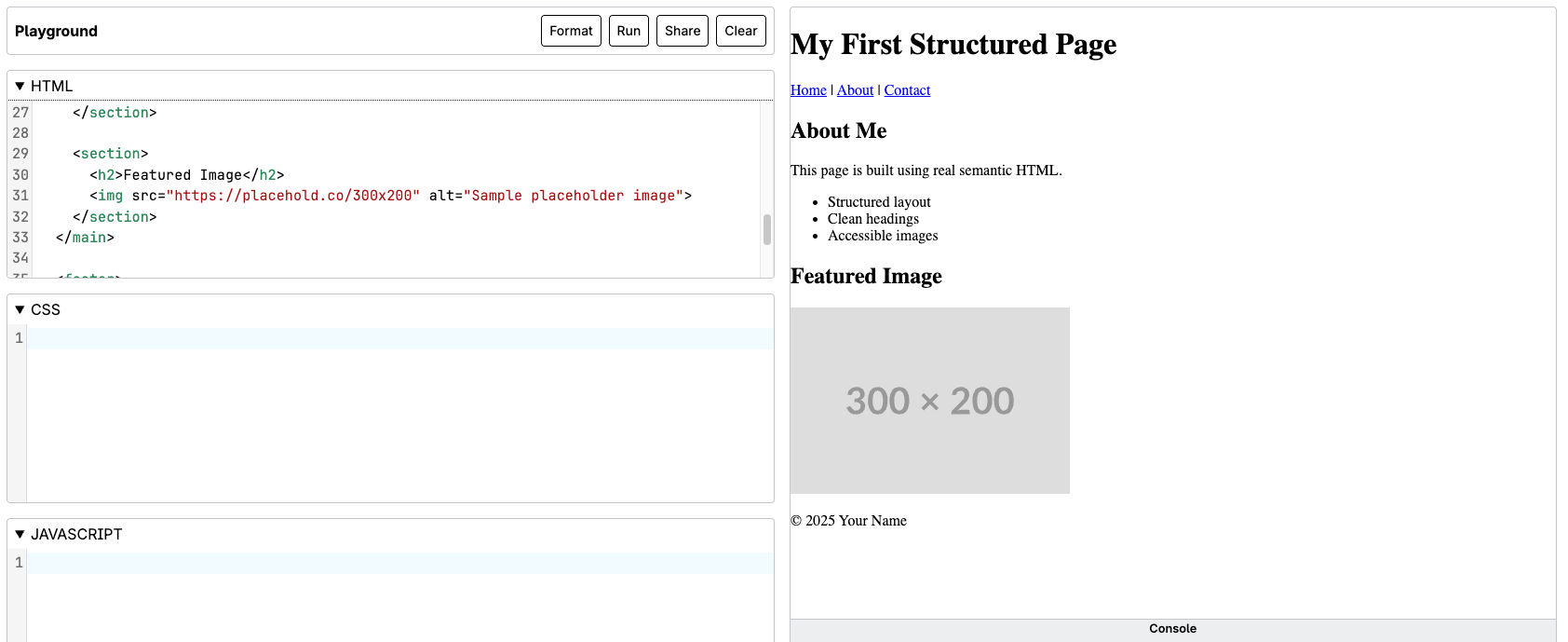
Your Mini-Practice:
- Change the page title
- Add one new
<section> - Add one list item
- Change the image
- Add a new navigation link
Common Fixes
- Using
<div>everywhere instead of semantic elements If an element has meaning (navigation, main content, footer), use<nav>,<main>, or<footer>instead of<div>. - Multiple
<h1>elements on one page Each page should have one<h1>for the main title. Use<h2>and<h3>for sections and subsections. - Putting content outside
<main>All primary page content belongs inside<main>. Headers and footers sit outside it. - Forgetting
alttext on images Every<img>needs analtattribute - even placeholders. Describe purpose, not appearance. - Using headings for styling instead of structure Don't pick
<h2>because it "looks right". Choose headings based on content hierarchy, then style with CSS. - Over-nesting or cluttered structure If you're stacking unnecessary
<div>s or deeply nesting elements, simplify. Clear structure beats clever structure.
Reflections
Real web pages are built from a surprisingly small core set of HTML elements. Professional developers do not rely on dozens of obscure tags - they rely on a strong command of structure. When you focus on meaningful elements and proper heading levels, your pages immediately become more organized, readable, and maintainable.
Structure always comes first. Styling with CSS should enhance well-written HTML, not compensate for poor structure. When your HTML clearly communicates meaning, your CSS becomes easier to write, your layouts become easier to manage, and your site becomes easier for others to understand and maintain.
Semantic elements are more than "nice to have". They directly improve accessibility for screen readers, strengthen search engine visibility, and make your code easier to read for collaborators - or for yourself six months from now.
At this point in the course, you have the skills needed to build clean, multi-page websites using professional structure. You are now ready to continue refining your project with thoughtful styling and layout techniques that build on this solid HTML foundation.
Source: Khalil Abdullah and Saylor University
 This work is licensed under a Creative Commons Attribution 4.0 License.